

Extract Attachments from Outlook
Extract attachments from Outlook PST files and mailbox folders with folder selection, date filters, local preview, and secure offline saving.

Use one focused workflow for extract attachments from outlook with local preview, filters, and export.
Why users need this workflow
Extract Attachments from Outlook is for teams that need local attachment folders from Outlook PST files, Outlook profiles, and mailbox folders without slow manual work. The main problem is not only finding data; it is keeping the output clean, traceable, and ready to use after extraction.
This page focuses on the exact intent to extract attachments from outlook. It covers what gets captured, which filters matter, how preview helps avoid bad exports, and what the final output should look like before it is used in a real business workflow.
- attachments from selected Outlook folders, plus useful source context such as sender, subject, date, and folder
- Source context such as folder, sender, subject, date, file name, or mailbox when available
- Duplicate-cleaned data for safer reporting and import
- XLSX, CSV, TXT, EML, MSG, HTML, RTF, and attachments
From messy source data to usable output
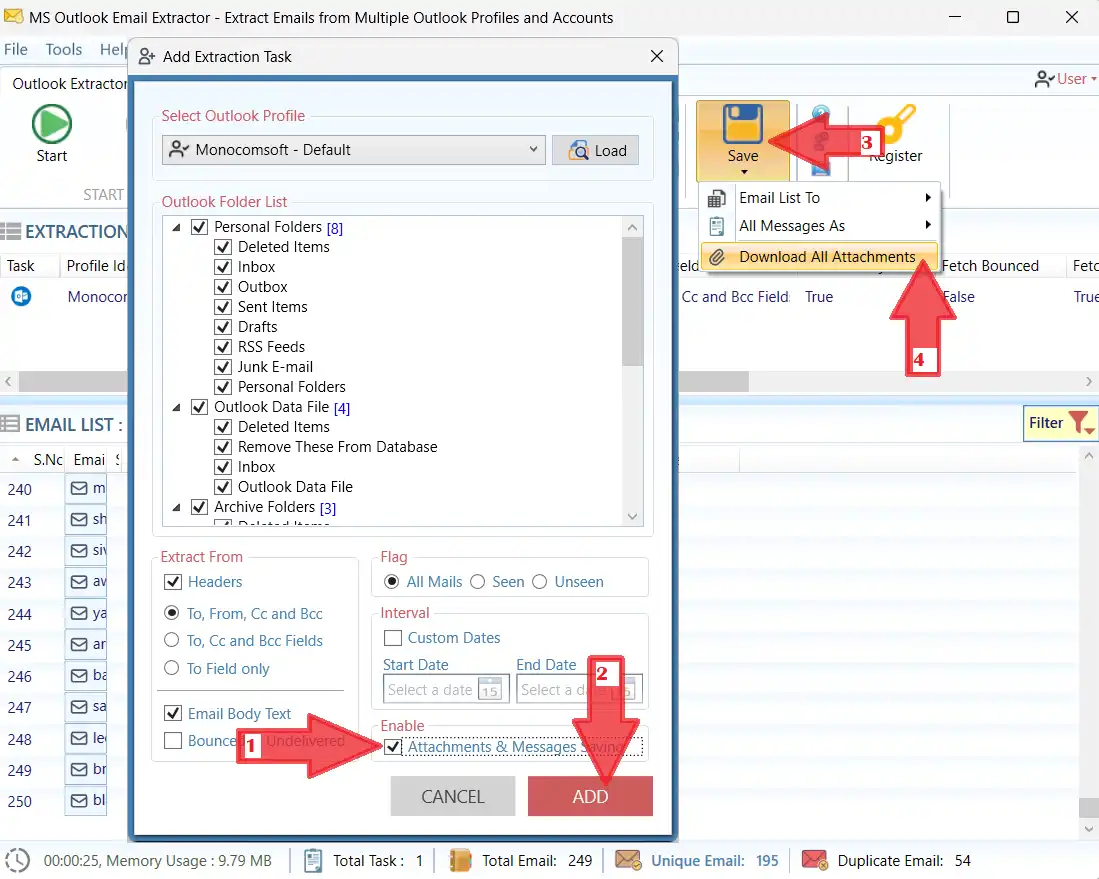
Load Outlook PST files, Outlook profiles, and mailbox folders, work with the right Outlook folders, PST files, or profile areas, preview what was found, and save local attachment folders with the context needed for reporting, backup, migration preparation, CRM cleanup, audit review, and operations work.
What gets carried through
attachments from selected Outlook folders, plus useful source context such as sender, subject, date, and folder stay tied to useful source context such as folder, sender, subject, date, file name, or mailbox where the source provides it.
Best use
- Run smaller batches when archives are large.
- Use filters before exporting, not after.
- Preview the result so the saved file is clean enough for real work.
Step-by-step process
Follow this focused process for extract attachments from outlook. The goal is to control source selection first, then apply filters, then preview, and only then export the final result.
- Preview before save
- Duplicate removal
- Date, folder, file, sender, or subject filters
- Local Windows processing
- Structured export formats
- Scanning every source at once before testing a smaller batch
- Exporting before previewing duplicate or irrelevant records
- Losing source context that may be needed for audit or follow-up
- Using the wrong output format for CRM, Excel, or backup use
Real use cases
This page targets one exact search intent, but the output supports several practical business needs.
Try Outlook Email Extractor
Extract attachments from Outlook PST files and mailbox folders with folder selection, date filters, local preview, and secure offline saving.
FAQ - Extract Attachments from Outlook
Quick answers for this exact workflow.