Excel Export (XLSX) Offline Processing PST + Profiles

Export Outlook Emails to Excel Files (XLSX/CSV) from PST & Outlook Profiles

Export a clean Excel list of Outlook emails for CRM import, reporting, audits, or lead review? This guide shows how to export an Outlook email list to .XLSX or .CSV using MS Outlook Email Extractor — with filters and duplicate cleanup.

Trial shows full preview of extracted results. Saving/exporting requires activation.
Where Excel Export lives in the app
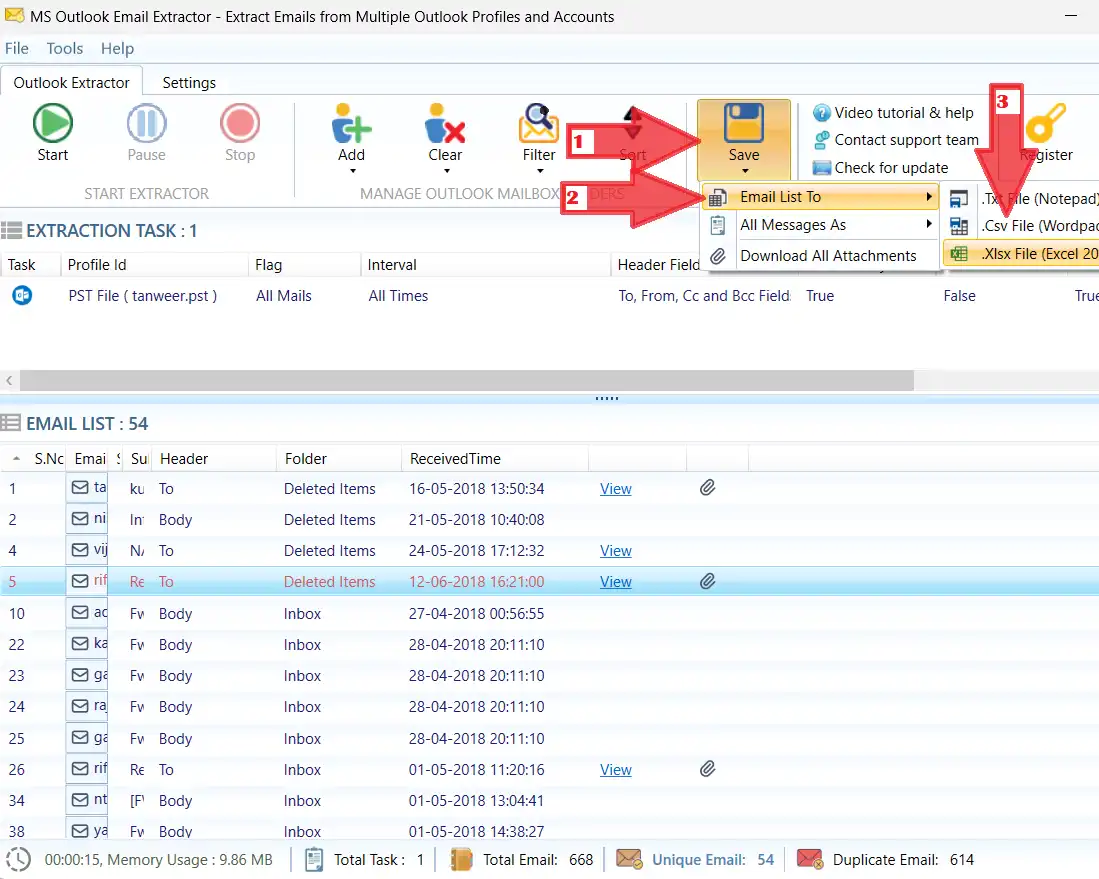
Menu: SaveEmail List To.Xlsx File
Export Outlook email list to Excel XLSX menu

Why Export Outlook Emails to Excel?

Exporting Outlook emails to Excel helps you create a structured email list for analysis, CRM entry, compliance, and record management. Instead of manually copying data, you can extract & export in seconds — then sort, filter, and review in Excel.

CRM & Sales Ops
Export lists for CRM import, lead review, and follow-ups.
Audit & Compliance
Maintain structured logs for review and documentation.
Reporting
Summarize by domain, sender, folder, and time.
Privacy
Offline export keeps data on your PC.
What gets exported to Excel?

Typical columns include:

  • Email ID
  • Sender Email & Sender Name
  • Subject
  • Folder
  • Profile ID
  • Received Time
  • (Optional) Header/Body flags depending on extraction settings
If you want, we can tailor the columns to match your existing app table exactly.

Step-by-Step: Export Outlook Email List to Excel (XLSX)

Follow these steps to export Outlook emails to Excel from PST files or Outlook profiles.

Step 1: Load PST File or Outlook Profile
Open the tool and add a task using Add. Choose either:
  • PST: select the PST file to load folders.
  • Profile: select a live Outlook profile (Outlook desktop required).
Step 2: Select Folders
Choose folders like Inbox, Sent Items, Deleted Items, or custom folders. Folder-level selection prevents unnecessary export noise.
Step 3: Apply Filters (Optional but recommended)
Use filters such as domain, date range, user, keyword contains, and read/unread. Enable duplicate removal for a clean Excel sheet.
Step 4: Start Extraction & Preview Results
Click Start to extract. You can preview the full list in trial mode.
Step 5: Export to Excel (XLSX)
Go to SaveEmail List To.Xlsx File (Excel 2010 or later). Choose destination folder and export.
Trial note: Trial supports full preview. Saving/exporting requires activation with a license key.
Pro Tips for Better Excel Exports
  • Export by date range if mailbox is large (faster + cleaner).
  • Use domain filter to create domain-wise sheets (great for analysis).
  • Remove duplicates before export for clean reporting.
  • Export lists (XLSX/CSV) for CRM; use EML/MSG for record archiving.
Need full emails (not just list)?

Use message export formats:

EML MSG HTML RTF

Filter Before Export: Cleaner Excel Sheets

Exporting everything often creates messy Excel files. Use filters to export only what you need.

Date Range Filter
Export only emails within custom start/end dates.
Domain Filter
Export sender/recipient emails for selected domains.
Read / Unread
Export Seen or Unseen emails for review.
Duplicate Removal
Export clean lists by removing duplicate emails.
Recommended supporting pages: Date Range ExportDomain ExportDuplicate Removal
Best practice workflow (Excel)
  1. Select folders
  2. Apply date + domain filters
  3. Enable duplicate removal
  4. Extract and preview
  5. Export to XLSX

Export Outlook Emails to Excel Faster

Use MS Outlook Email Extractor to export clean Excel lists from PST files and Outlook profiles — offline, fast, and with advanced filters.


Trial supports full preview. Activation is required to save/export.

FAQ – Export Outlook Emails to Excel

Quick answers to common Excel export questions.

Load a PST file or select an Outlook profile, select folders and optional filters, then go to Save → Email List To → .Xlsx File. Trial supports full preview; saving requires activation.

Common fields include Email ID, Sender Name/Email, Subject, Folder, Profile ID, and Received Time. The final columns depend on your extraction settings.

Yes. Filter by domain, user, date range, read/unread state, and text contains. You can also enable duplicate removal to export clean lists.

Yes. PST extraction works with accessible PST files. Outlook profile extraction works on Windows when Outlook desktop is installed.
Back to product: Outlook Email Extractor
