Download Outlook attachments from a PST file (or specific folders) without opening emails one-by-one? This guide shows how to bulk extract attachments using MS Outlook Email Extractor — with advanced filters including file type, date range, and duplicate control.
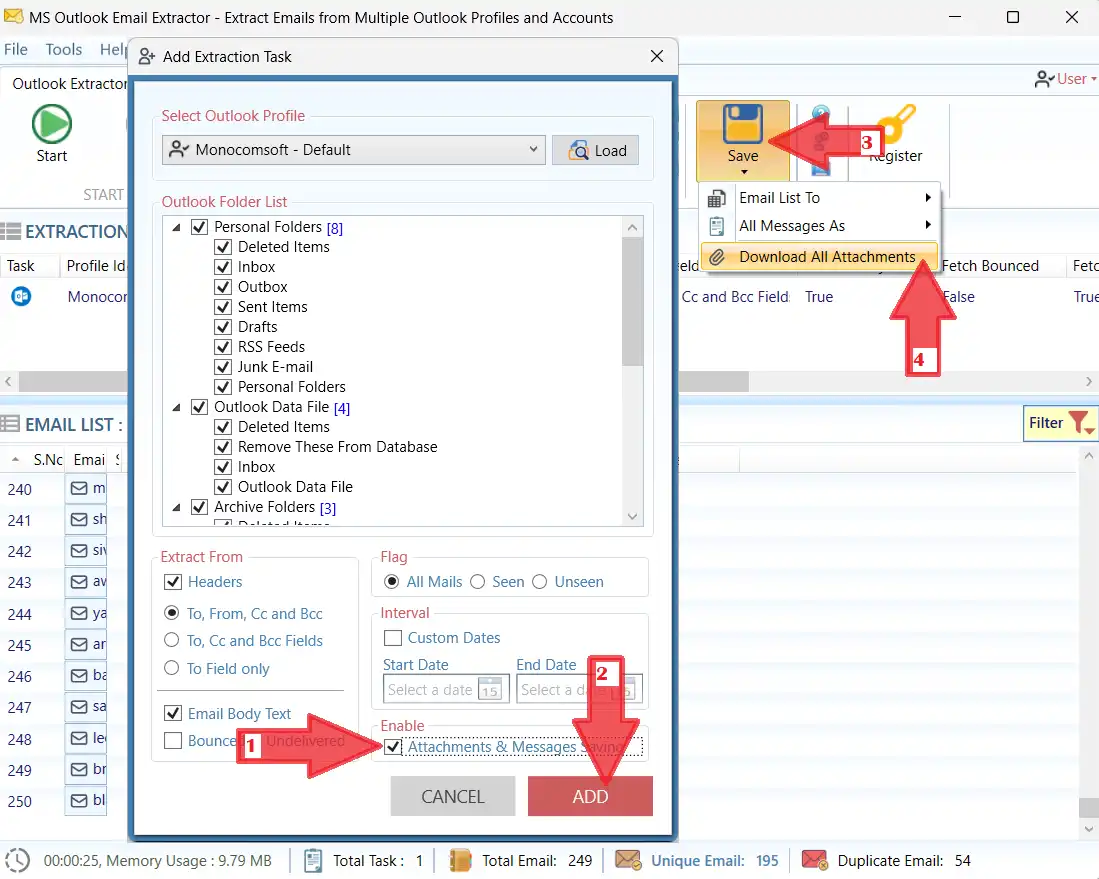
PST files often contain years of invoices, HR documents, contracts, images, and project files. Manually opening each email is slow and error-prone. With bulk extraction, you can save attachments to a folder in minutes — and keep your data on your Windows PC with offline processing.
Typical formats include:
This workflow is commonly used by finance teams, compliance teams, and operations teams to collect attachments quickly from Outlook PST archives or live Outlook profiles.
Export sender/subject/folder metadata to Excel for tracking and mapping.
Export to Excel →Follow these steps to bulk download Outlook attachments from PST files or Outlook profiles. Use filters to keep results clean and reduce processing time.
For archiving or legal records, export full emails in message formats.
Exporting all attachments can create a messy folder. Filters help you download only the files you need — faster, smaller, and easier to review.
Create a structured folder naming rule:
Use MS Outlook Email Extractor to extract attachments from PST files and Outlook profiles — offline, fast, and with smart filters for clean output folders.
Quick answers to common PST attachment extraction questions.

