
Choose your source
Start with the type of mailbox or file collection you can access.
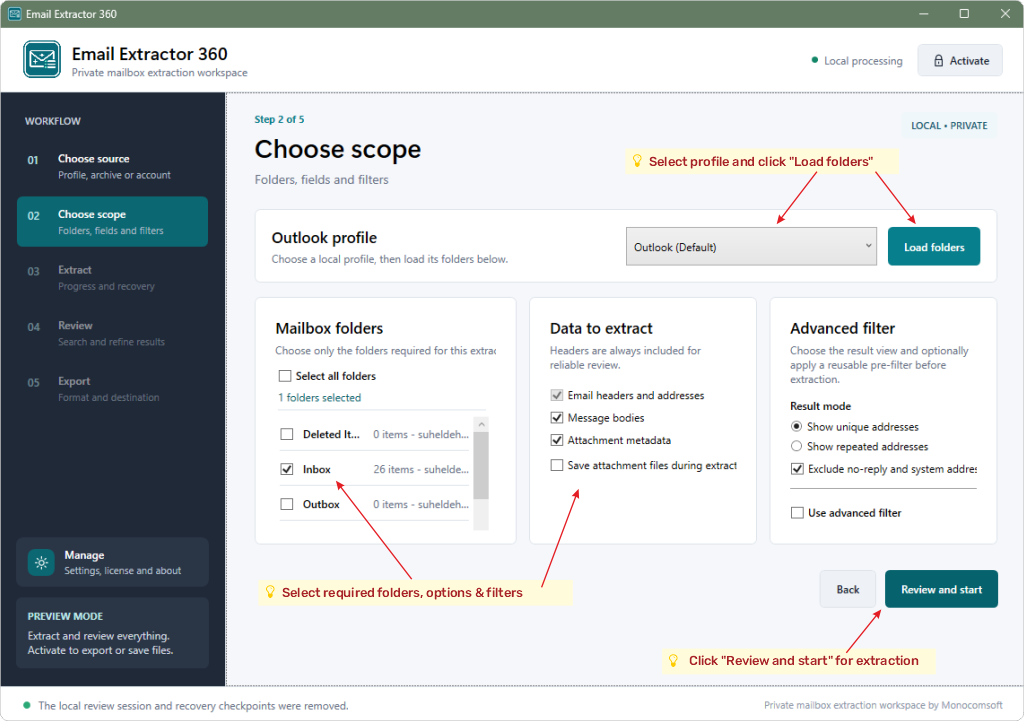
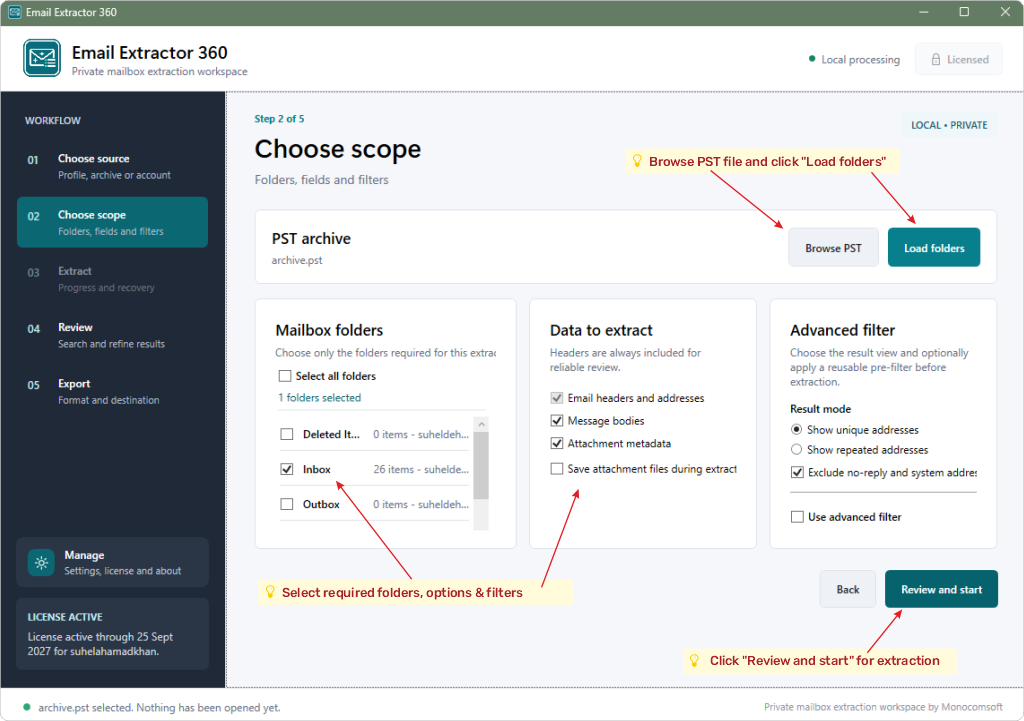
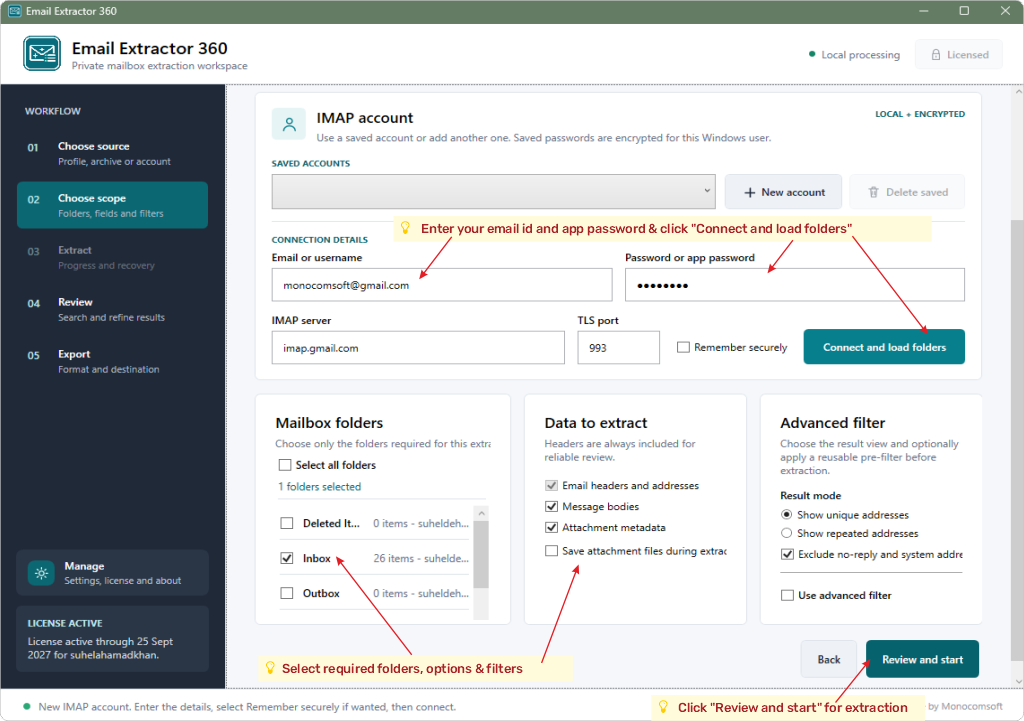
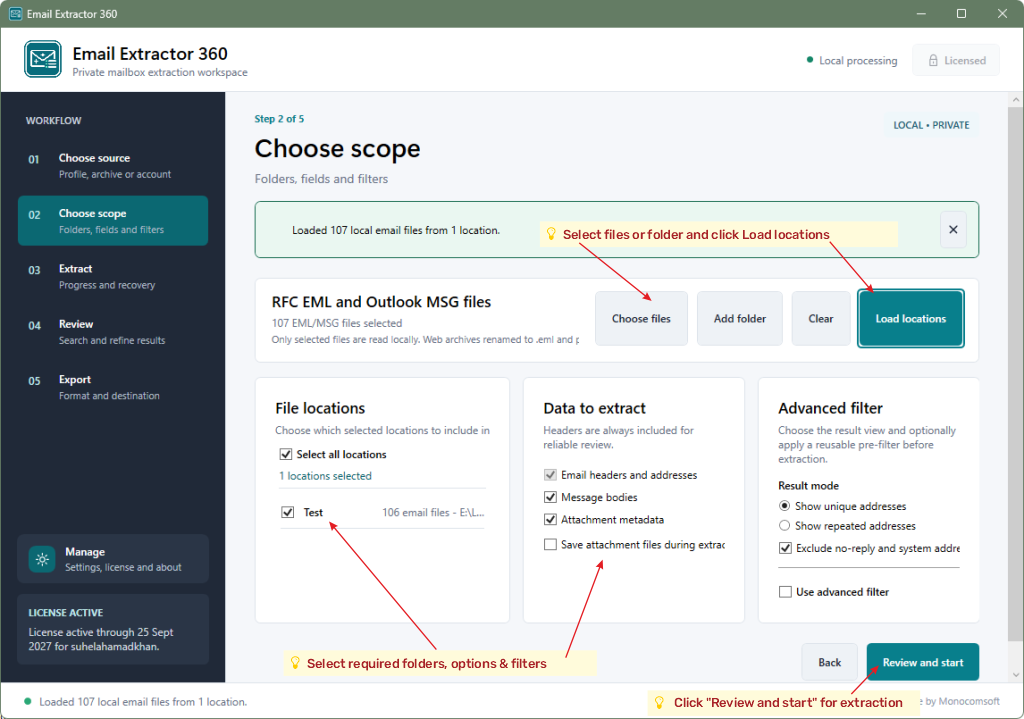
- Open Email Extractor 360 and choose Outlook profile, PST archive, IMAP account, or EML/MSG files.
- For Outlook or PST, use classic Microsoft Outlook for Windows; open a PST archive in Outlook before selecting it in the app.
- For IMAP, enter the server, TLS port, username, and provider-approved password or app password. Save credentials only on a trusted computer.
- For EML or MSG, choose local files or a folder containing those files.
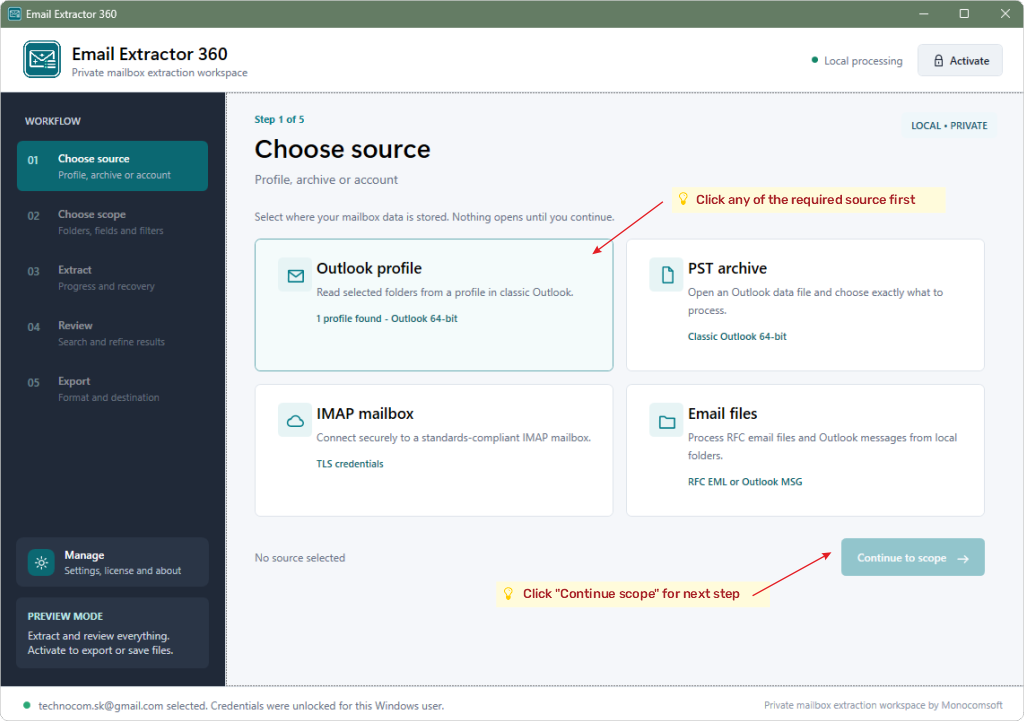
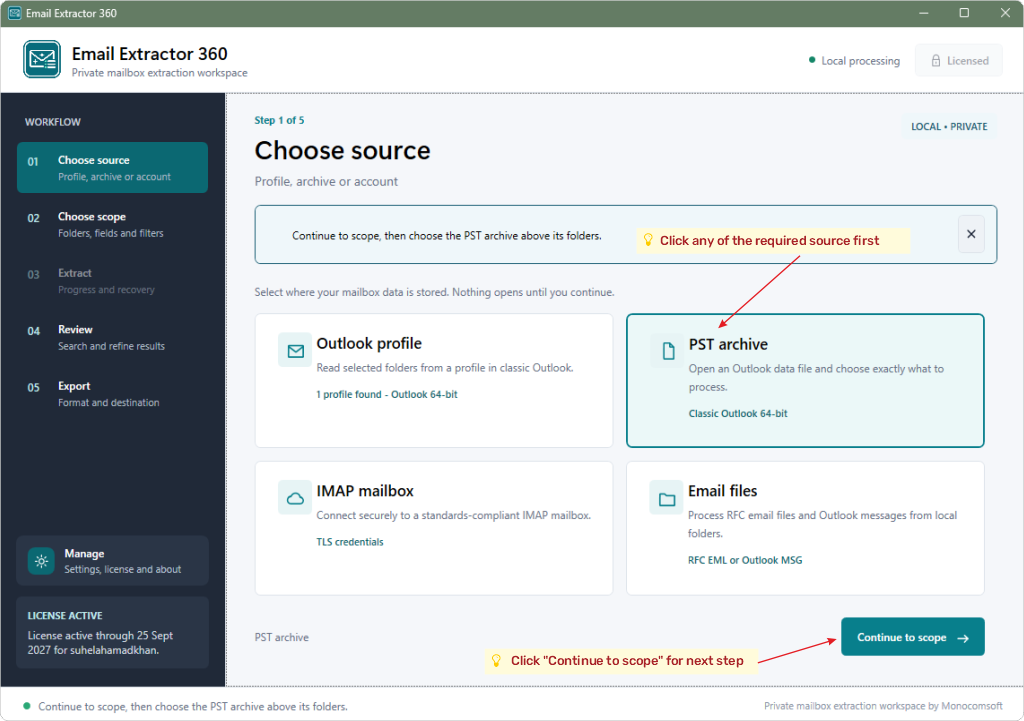
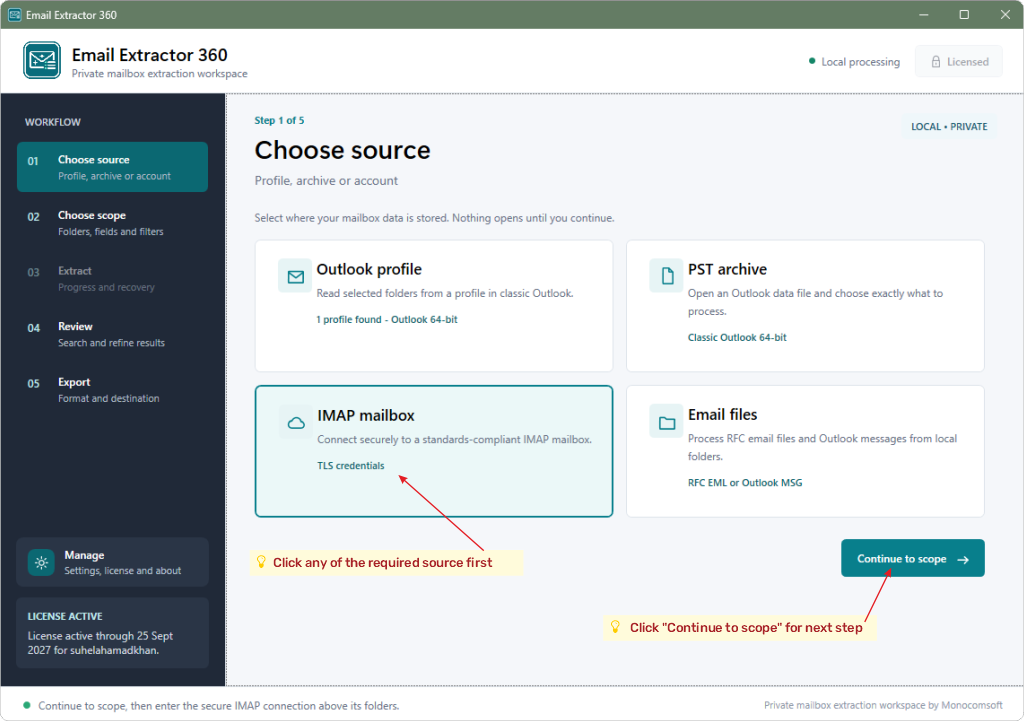
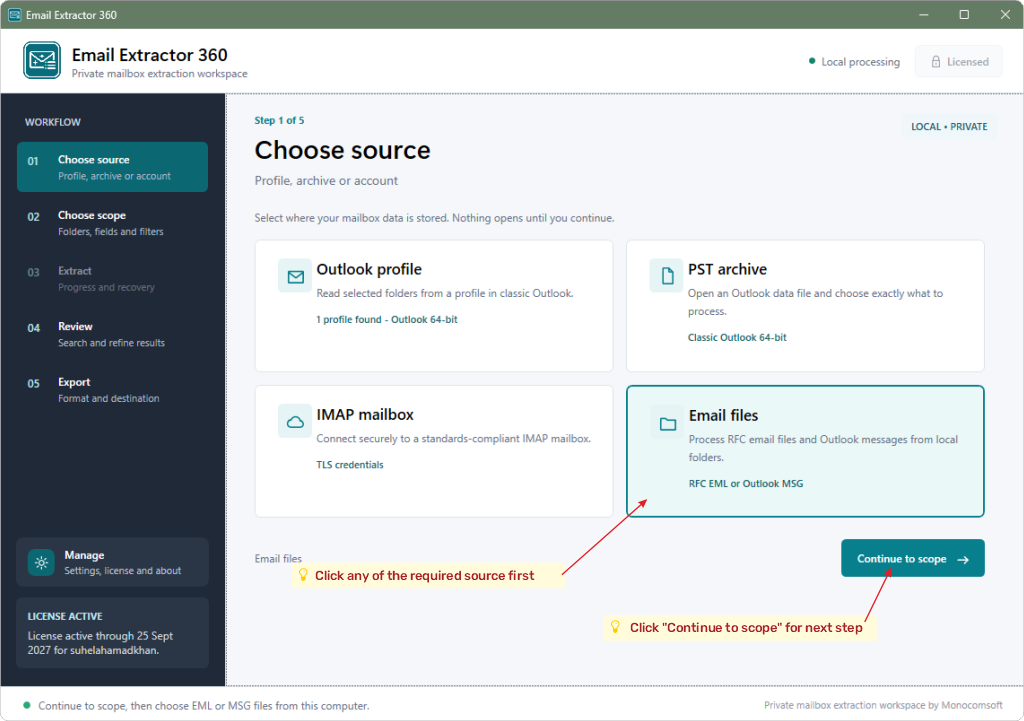
The app does not directly parse PST or OST files. Only process mailboxes and files you are authorized to access.
Select folders and filters
Limit the work to relevant folders, fields, and dates before extracting.
- Load the available folders for your source.
- Select the folders or local file groups to include.
- Set the date range and other available filters for the task.
- Review any attachment-saving option and choose a local destination if licensed.
Run extraction
Follow the progress of the selected mailbox work.
- Start extraction after checking the source and scope.
- Keep an IMAP connection available while its folders are being read.
- Watch progress and any source-specific messages shown by the app.
- Move to Review when processing finishes.
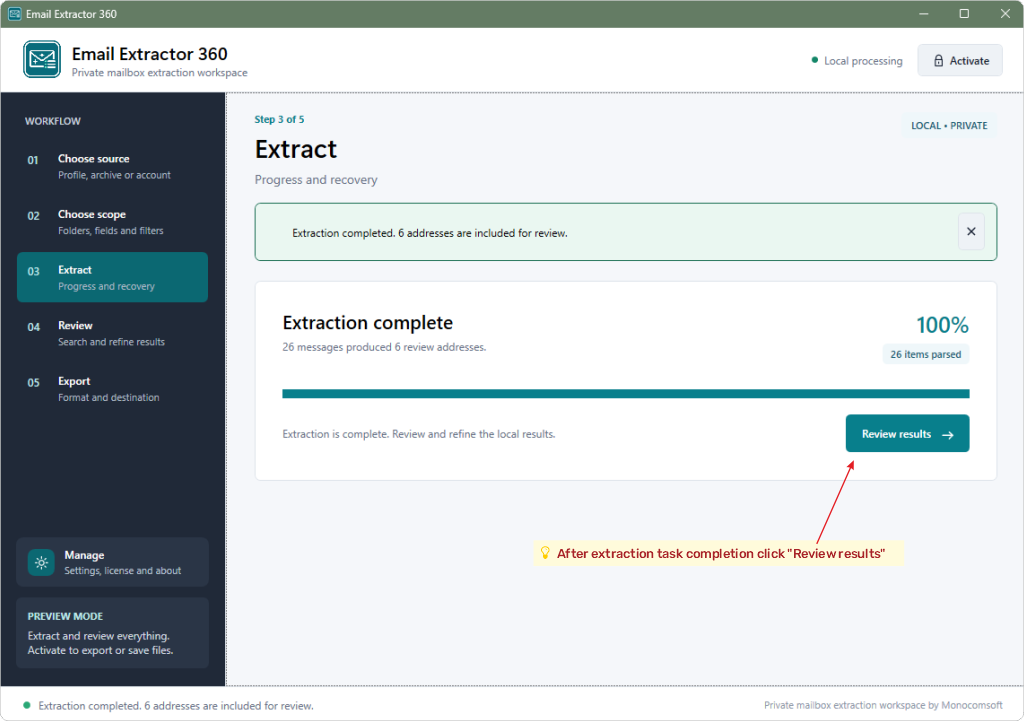
Large mailboxes and remote IMAP servers can take longer. Start with a small folder or date range if you are checking a new account.
Review results
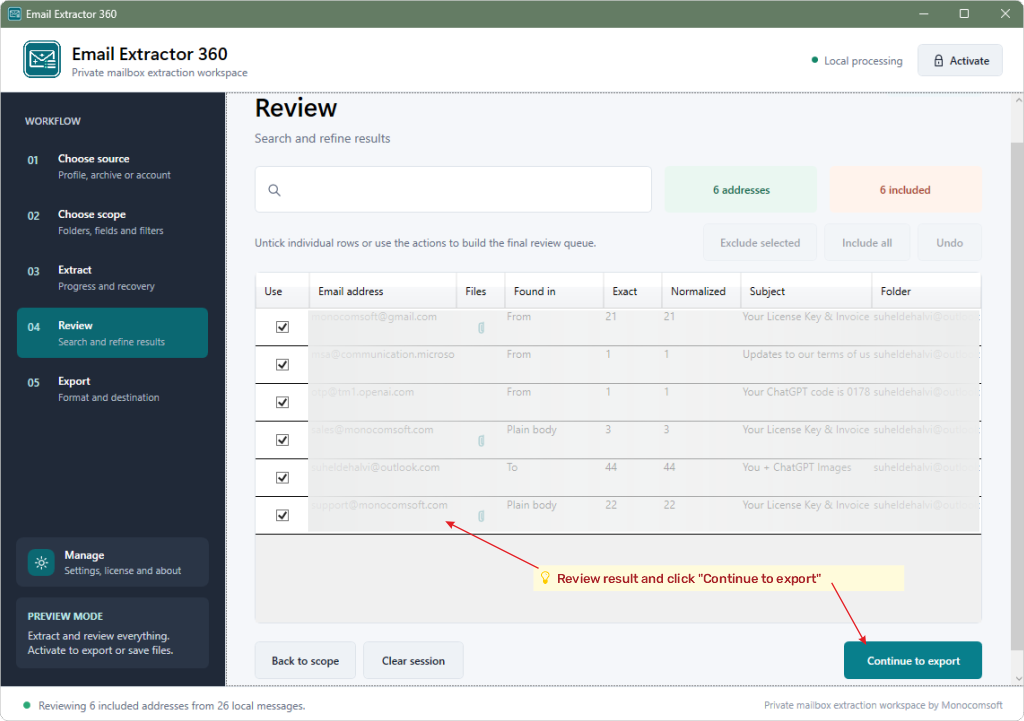
Inspect the extracted addresses and their message context before saving.
- Search the results for the address or message context you need.
- Switch between unique and repeated addresses where useful.
- Refine the review list and confirm that the selected scope is correct.
- Return to the source or scope step if something important is missing.
Export reviewed data and attachments
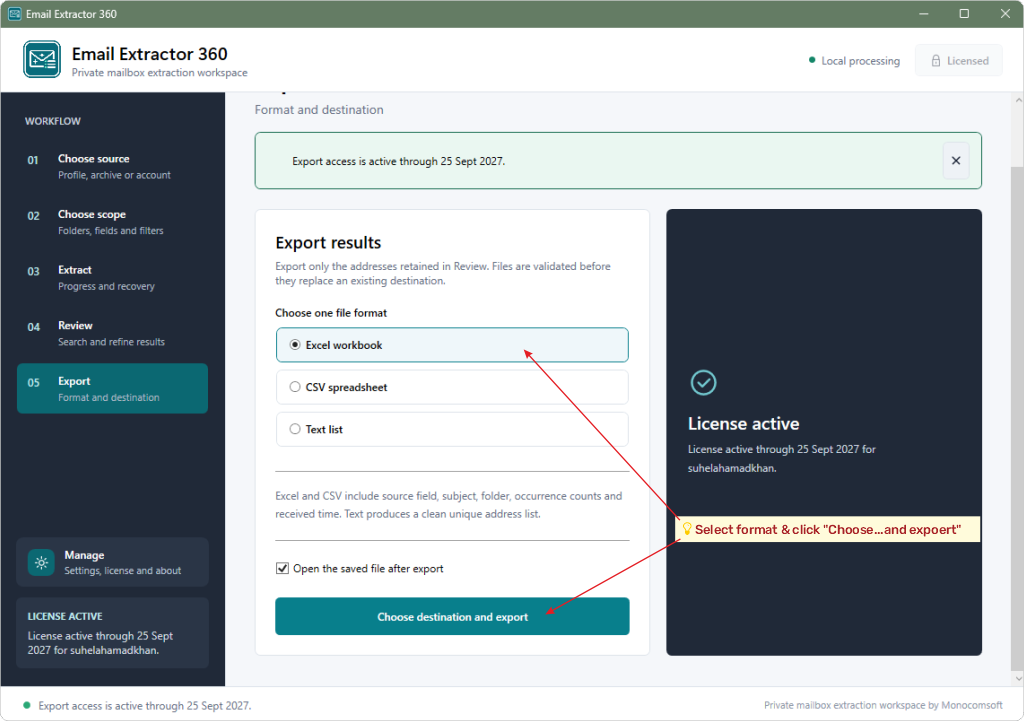
Use a license to save selected output to your computer.
- Activate an Email Extractor 360 license if export is still locked.
- Choose XLSX, CSV, or TXT for the reviewed address data.
- Select the destination and verify the saved file after export.
- If you enabled supported attachment saving, check the organized output folders and keep only data you are permitted to retain.
This V1 release does not export whole messages as EML or MSG files. Embedded Outlook items inside MSG attachments are not extracted as separate message files.
Activate and manage a license
Evaluation mode is available before activation; a license unlocks file saving.
- Open Manage, then License, and choose Activate.
- Enter the purchase email and license key from your MonocomSoft order.
- Complete the verification step shown in the app.
- Use the License screen to view status and, where supported, back up or release a lifetime entitlement.
Do not send your license key or mailbox password in a public support request.
Troubleshooting notes
Common questions that can save a support request.
Why is my PST archive not listed?
Open the PST in classic Microsoft Outlook first. The app uses Outlook to access PST archives and does not directly parse a PST file.
Why does my IMAP login fail?
Check that IMAP is enabled for the account, confirm the server and TLS port, and use a provider-approved app password when required. Some providers may require account-specific security settings.
Why can I review but not export?
That is evaluation mode. Activate a valid Email Extractor 360 license to save address exports or attachment files.
Where does my mailbox content go?
Extraction runs on your computer. IMAP connects to your mail provider, but mailbox content is not uploaded to MonocomSoft.