

Open PDFs and images
Start with source files saved on your PC.
- Install Flipbook Studio 360 and open it from Start.
- Open PDFs or supported images from Home.
- Wait for the initial pages to load, then open Design.
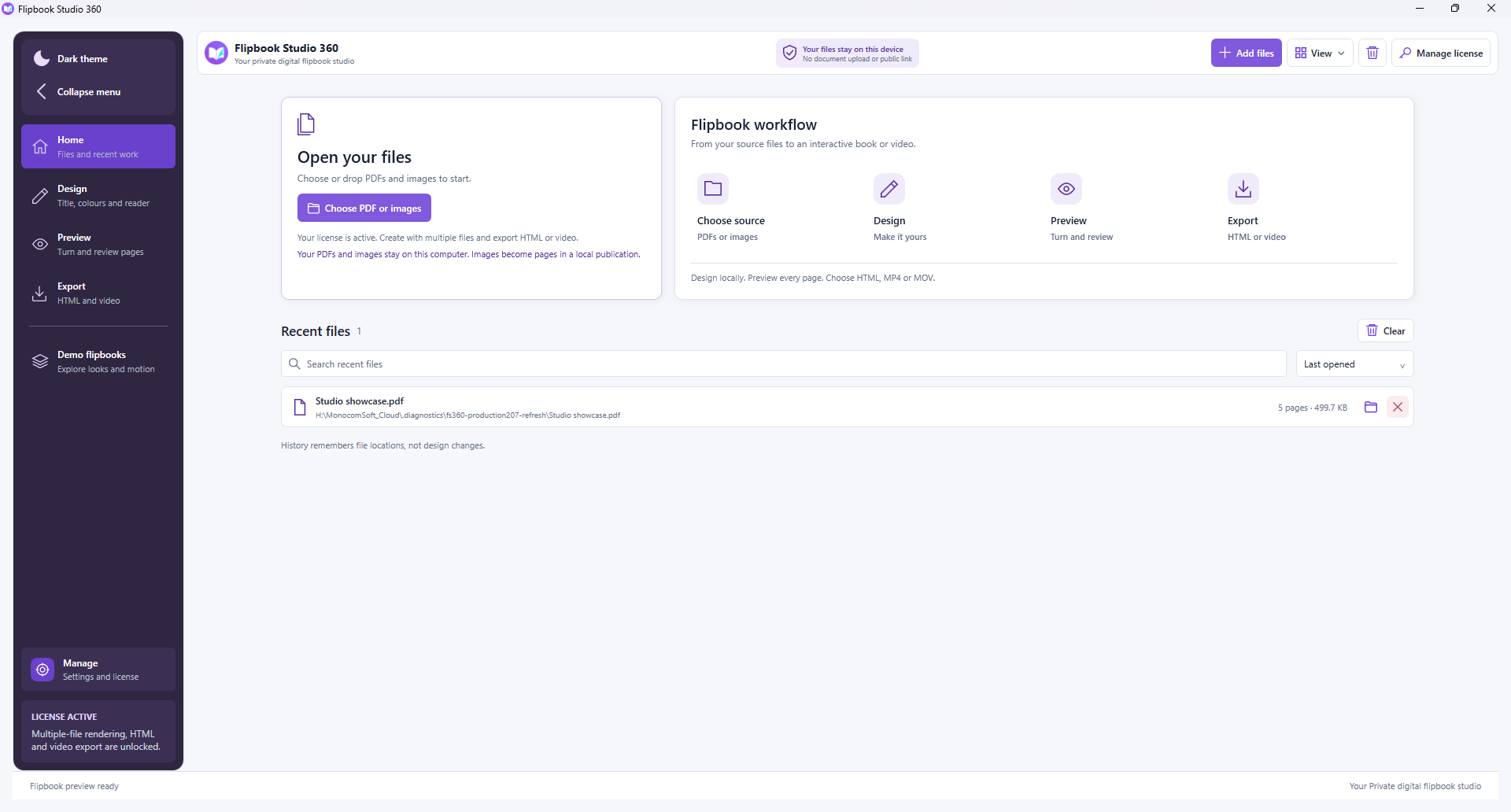
Unlocked PDFs can be up to 500 MiB and 500 pages. The initial loading limit defaults to 100 pages and is adjustable in Settings.
Choose publication details and style
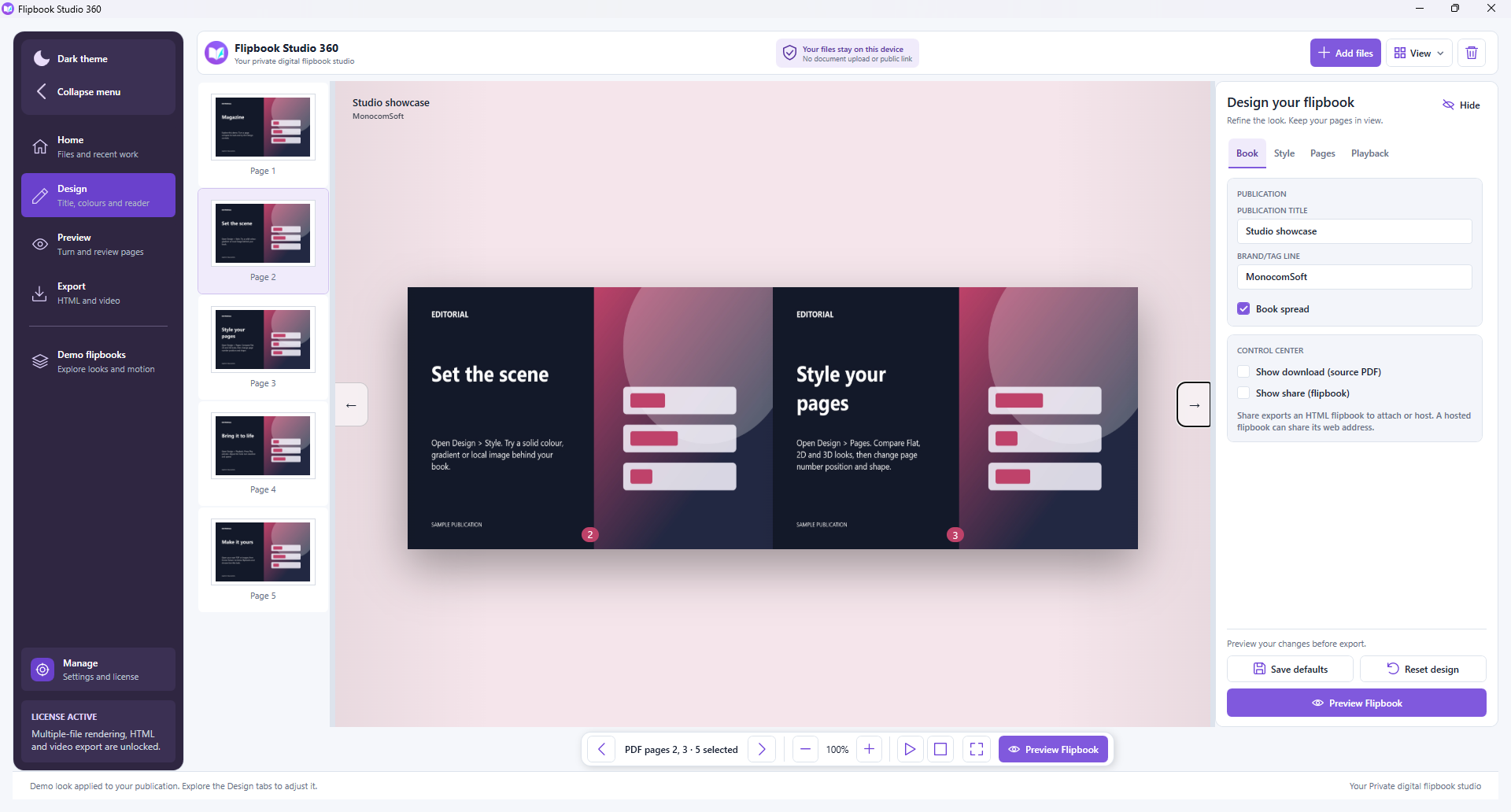
Use the Book and Style tabs to personalise the reader.
- Set the publication title, branding and single-page or spread layout.
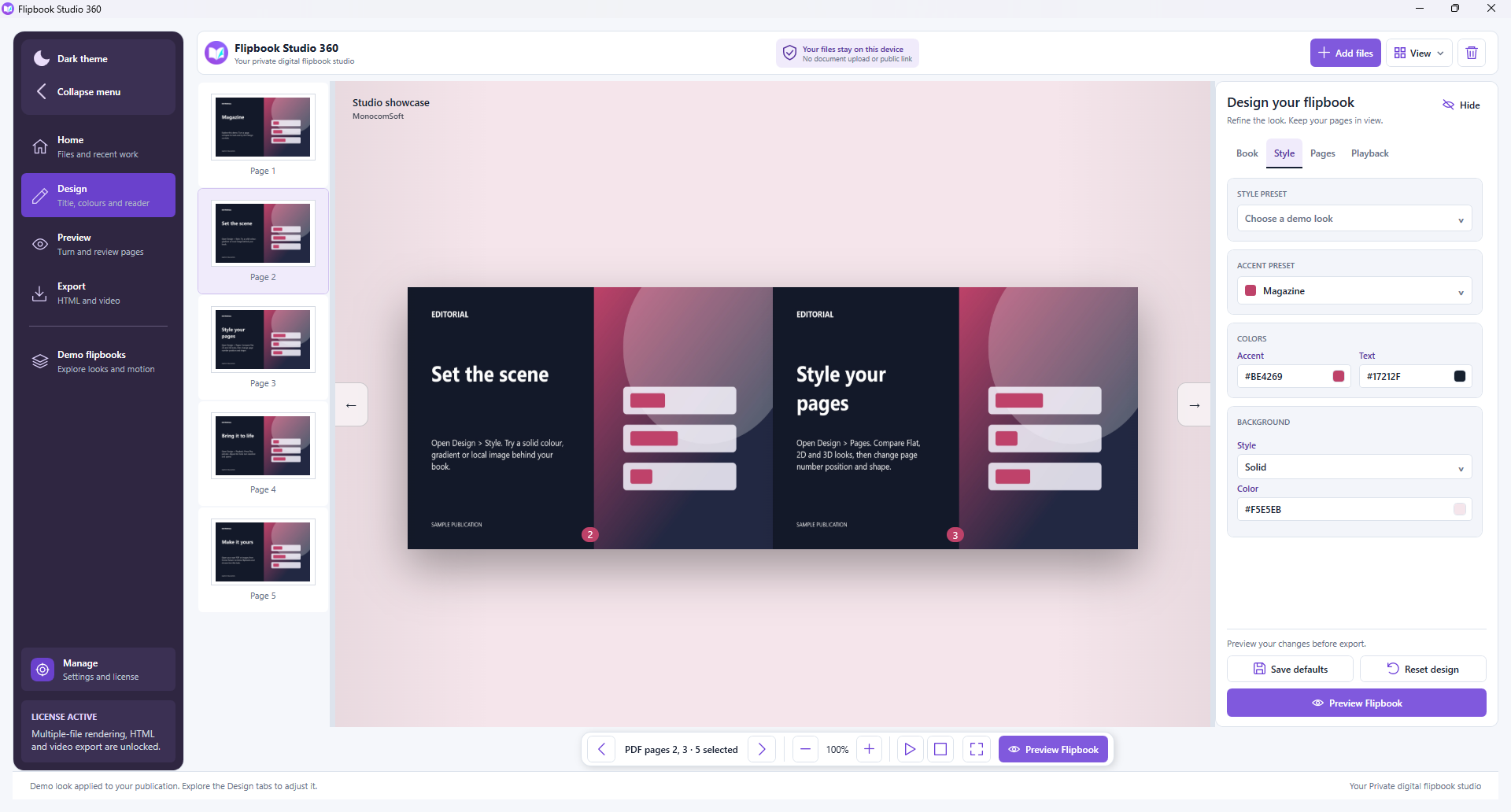
- Choose colours, gradients, built-in backgrounds or a background image.
- Explore Demo flipbooks and use a look on your loaded sample.
Keep separate page selections
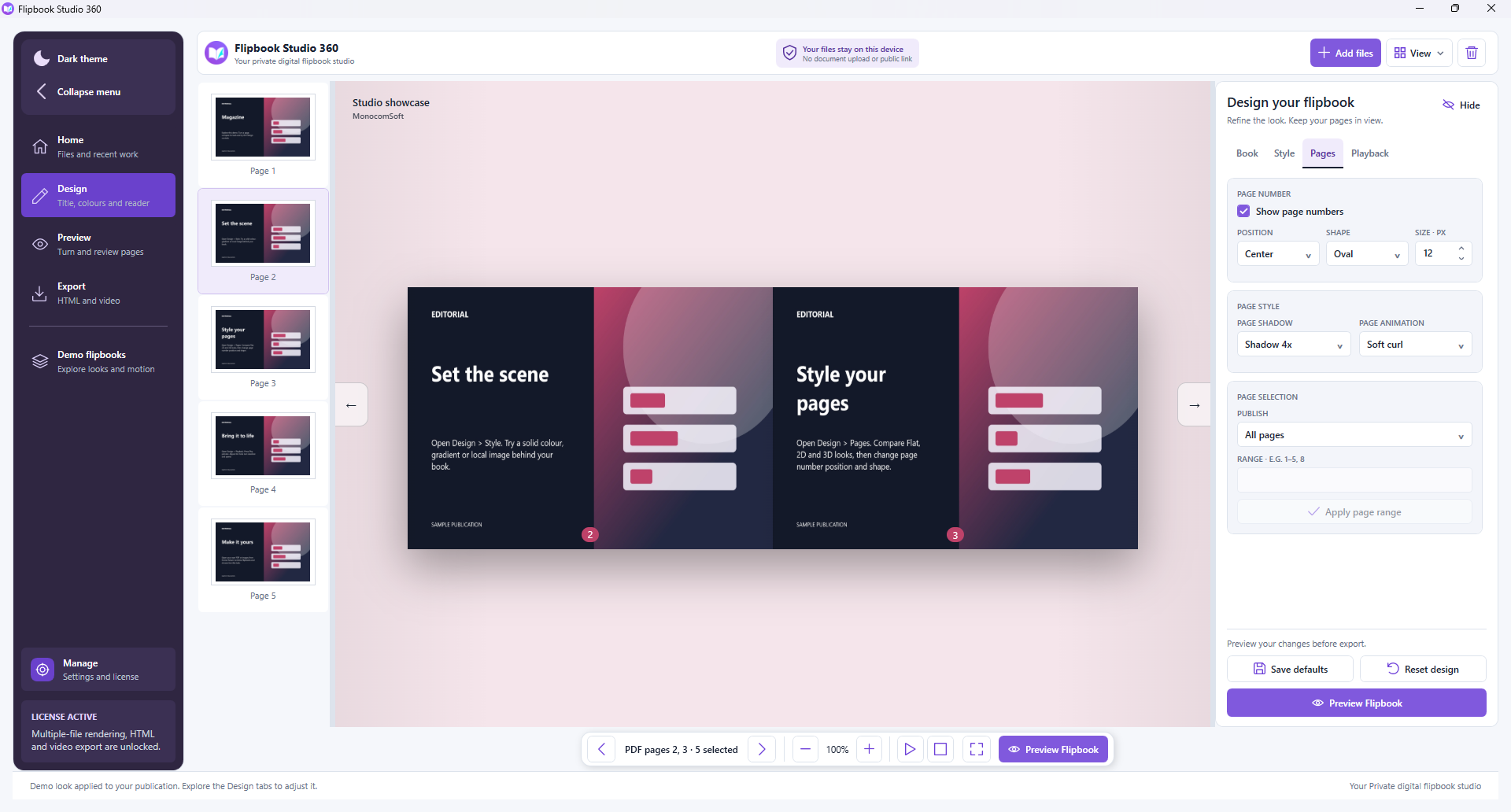
Each PDF retains its own source-page range.
- Select a PDF and choose its range in Design > Pages.
- Apply the range and check the preview.
- Switch to another PDF and set its own range.
- Check per-file counts and ranges again in Export.
Only shared styling carries across files. Files up to 102 pages can export in full. Larger sources offer 100 pages plus the opposite two end pages, or a custom selection of up to 100 pages. A source can contain up to 500 pages.
Preview playback
Check appearance and timing before saving.
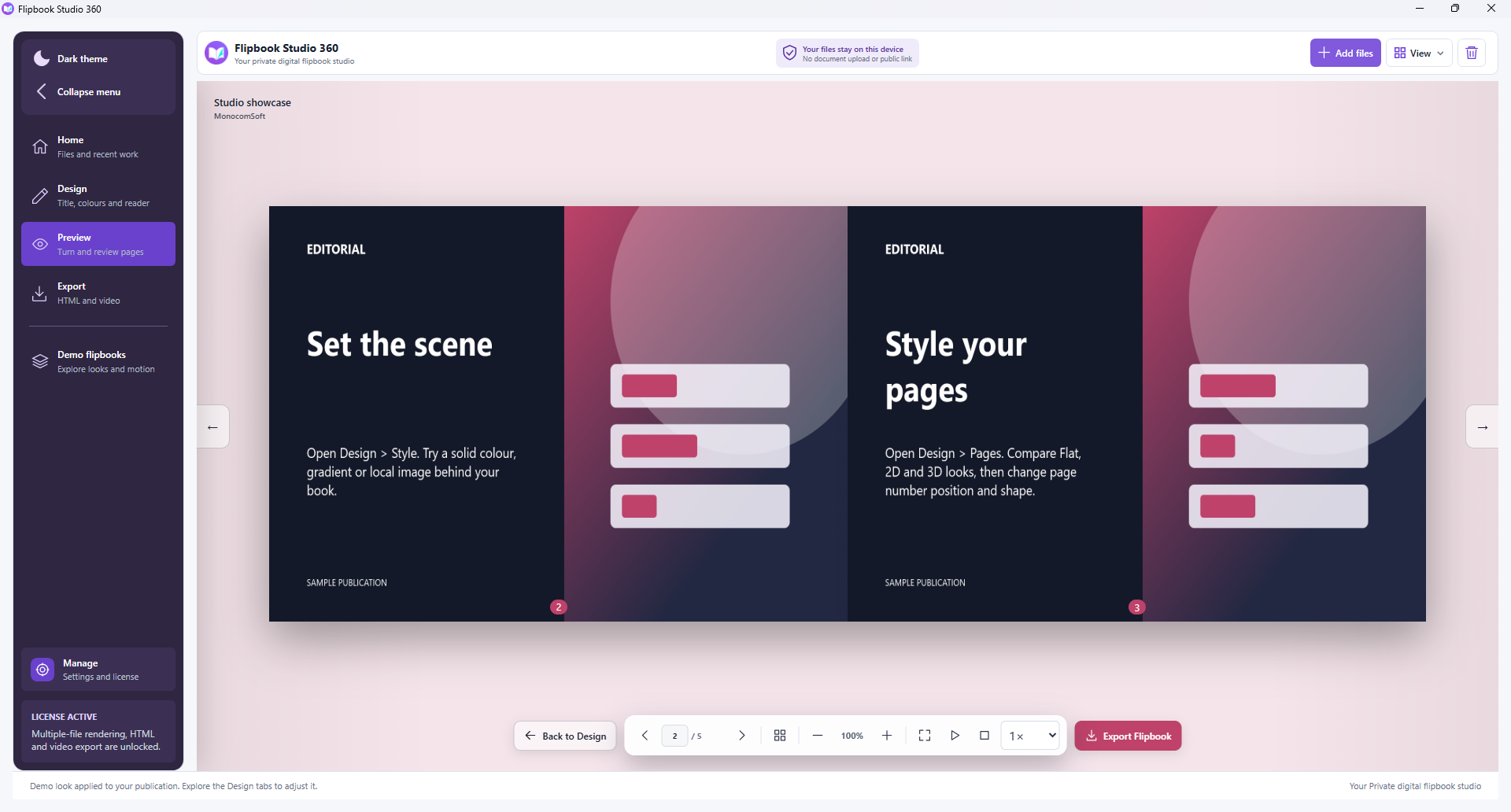
- Open Preview and review page turns, thumbnails, zoom and full screen.
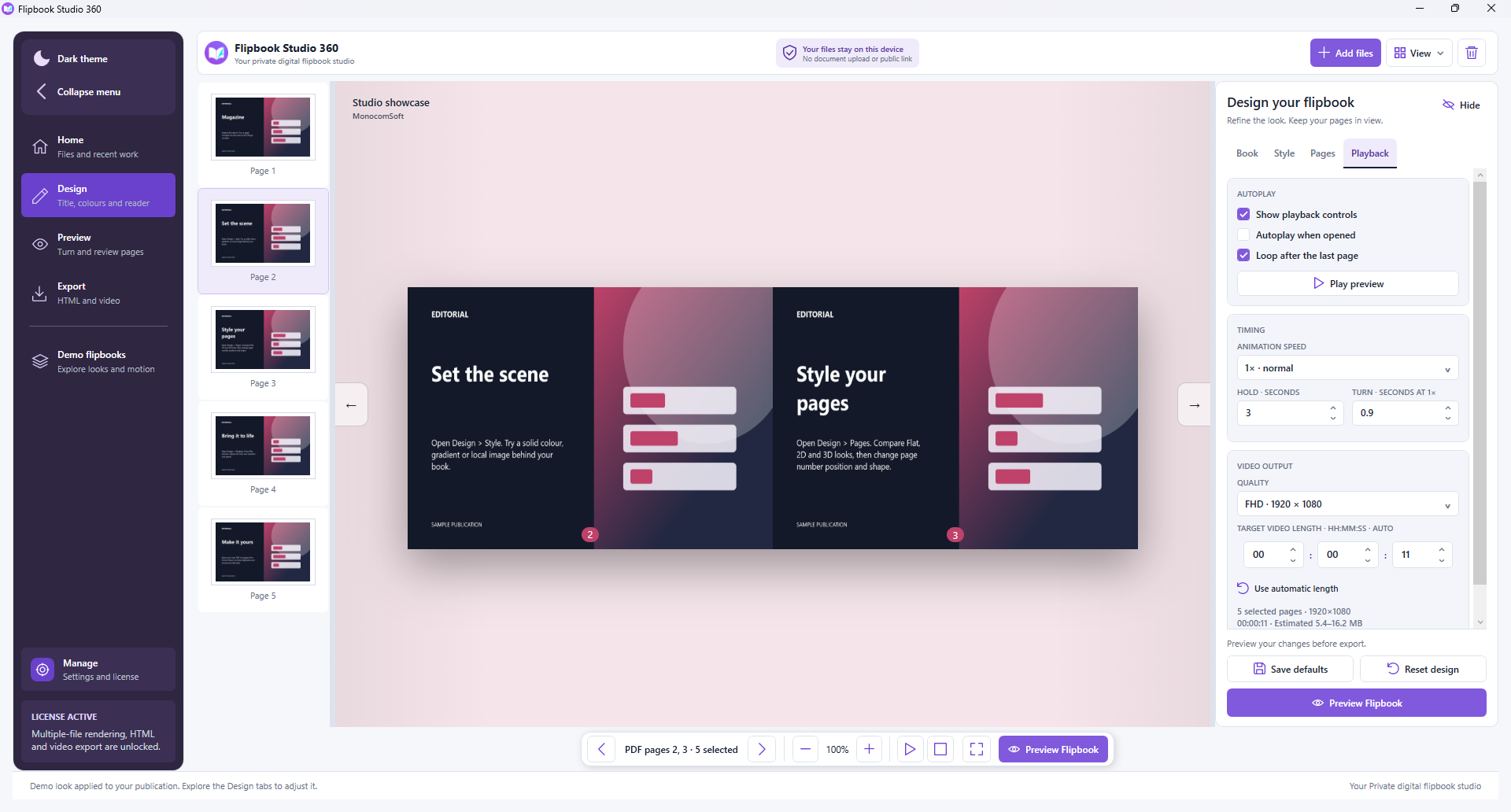
- Use Design > Playback to adjust speed, page hold and turn duration.
- Check autoplay, play/pause and optional looping.
- For video, leave target duration automatic or choose a duration long enough for the selected pages.
Activate your Flipbook license
Unlock additional PDFs and HTML/video export.
- Open Manage > License > Activate.
- Enter your purchase email and Flipbook license key.
- Request the verification code and complete activation.
- Return to Export and choose HTML or video.
Purchase and activation require internet access. Use a Flipbook license; an EE360 license does not unlock this app. Keep license keys and verification codes private.
Save HTML or MP4/MOV video
Choose the format that fits how you want to share.
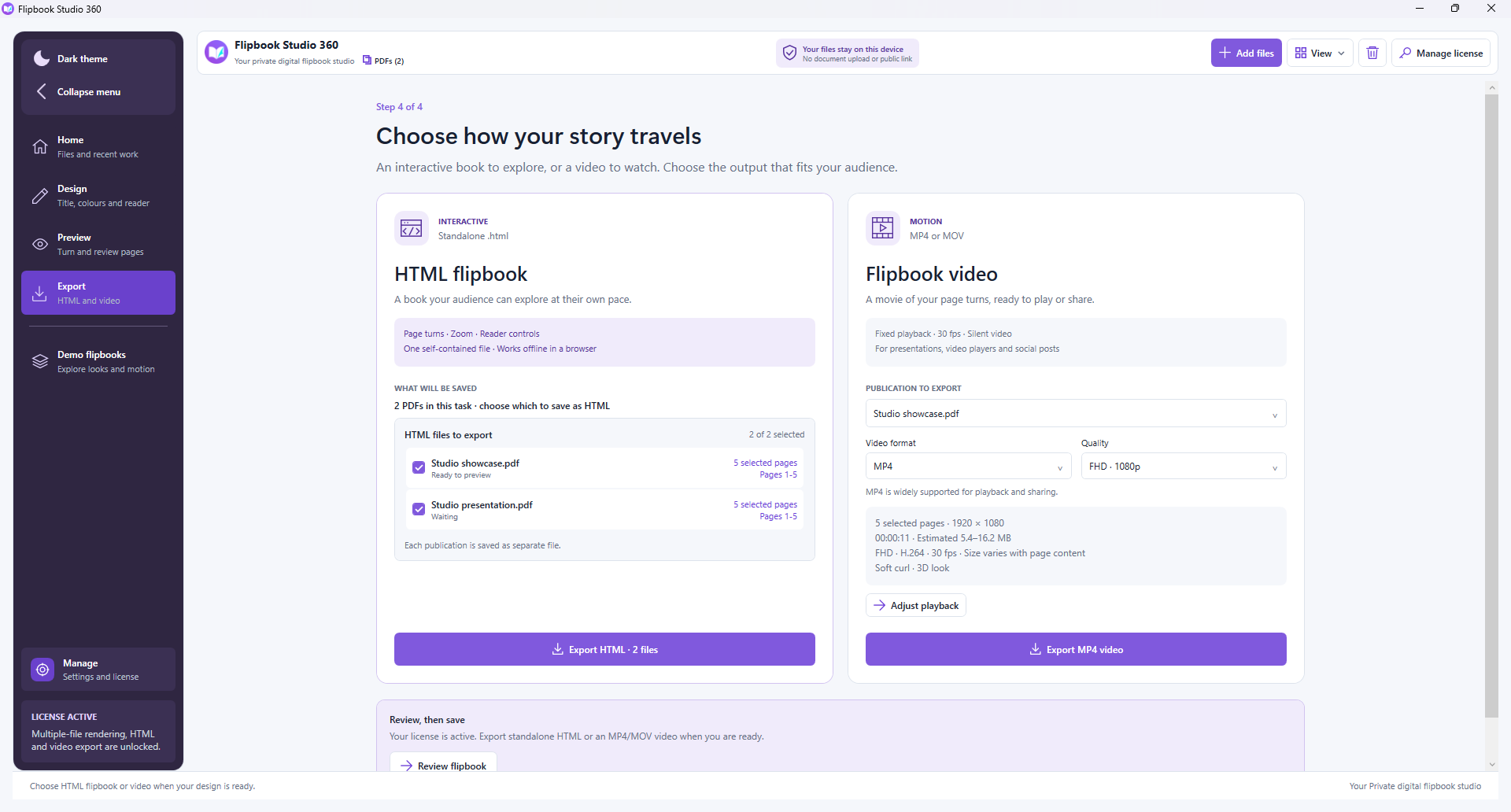
- Open Export and choose HTML or video.
- For HTML, select the PDFs and review each count and source range. Each publication is saved as a separate file.
- For video, select the PDF, MP4 or MOV, and FHD, HD or SD.
- Choose the destination and follow progress. Pause/Resume or Cancel if needed.
- Open the saved output and check it before sharing.
Video is silent H.264; MOV is not ProRes. HTML pages are images without searchable text. Enabling the original-PDF download shares the full source, not only selected pages. The app does not provide hosting.
Troubleshooting notes
Common questions that can save a support request.
Can I try it before buying a license?
Yes. Design and preview your first publication without a time limit. Rendering additional PDFs and saving HTML or video require an active Flipbook license.
Can I create flipbooks from images?
Yes. V2 accepts PDFs and supported image files. EPUB and PowerPoint are not imported directly; export those documents to PDF first.
Can I save a flipbook as a video?
Yes. Licensed video export supports silent MP4 and MOV in FHD, HD or SD, with selected pages, background and playback timing. MOV output uses H.264, not ProRes.
Can I export several PDFs with different pages?
Yes. Each PDF keeps its own page selection. Export HTML shows its count and source range and saves a separate flipbook for each selected document. Only shared styling carries across files.
How do I share an HTML flipbook?
Share the saved standalone HTML file or host it on your own website. Readers use a modern browser. The app does not automatically upload or host the publication.
Can readers search the original PDF text?
HTML pages are rendered images, so their text is not searchable or selectable. If you enable the original-PDF download, readers receive the full source PDF.
Can I also create flipbooks online?
Flipbook Maker Online provides a separate browser workflow through MonocomSoft Workspace. One Flipbook license unlocks both products; their available features differ.