

Open your first PDF
Start with a document already saved on your PC.
- Install PDF Flipbook Creator from Microsoft Store and open it from Start.
- Use Choose PDF or drop a PDF into the app.
- Wait for the document to load, then continue to Design.
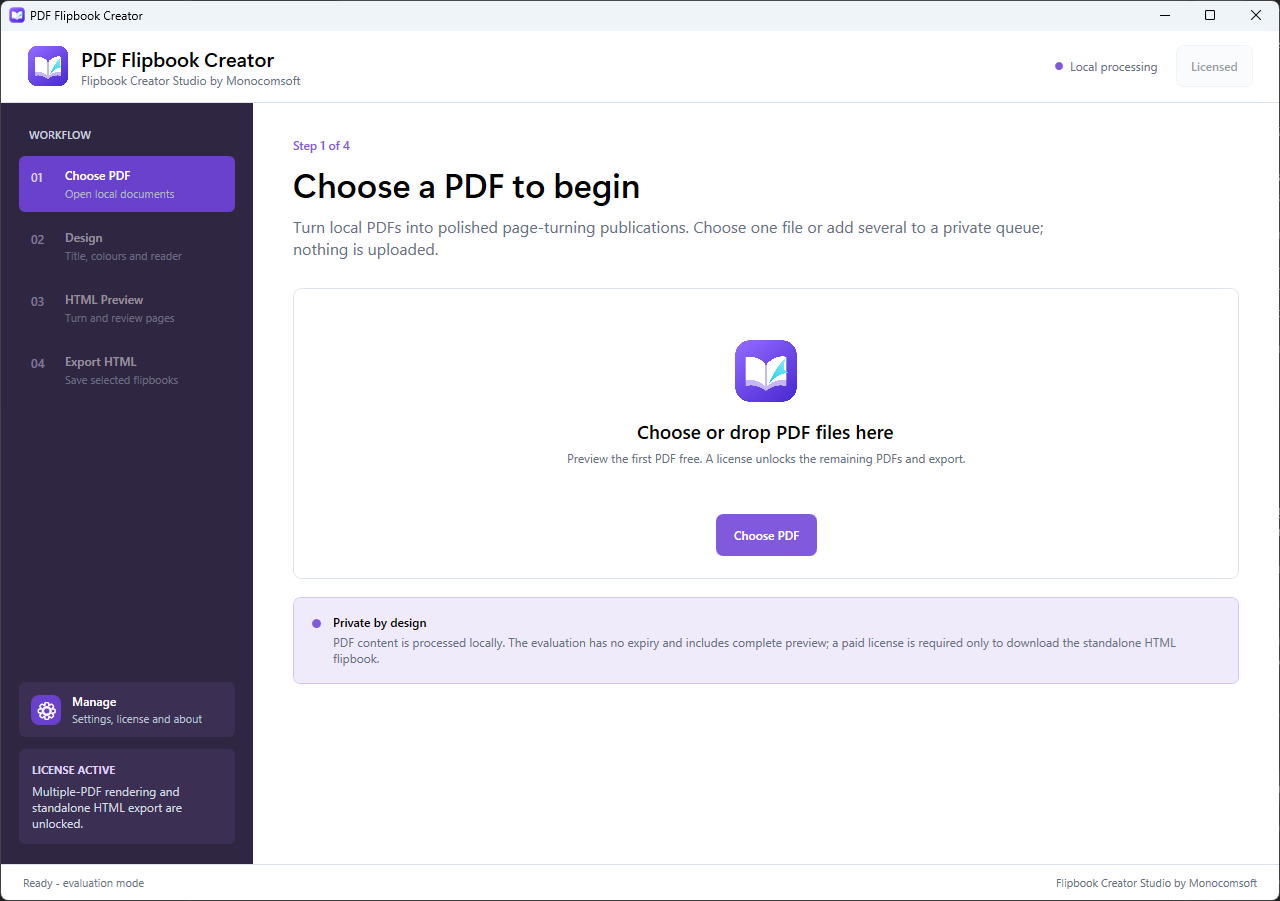
Use an unlocked PDF no larger than 100 MiB and no longer than 500 pages. The first PDF can be designed and fully previewed free, without a time limit.
Personalise the reader
Choose how your publication will look and read.
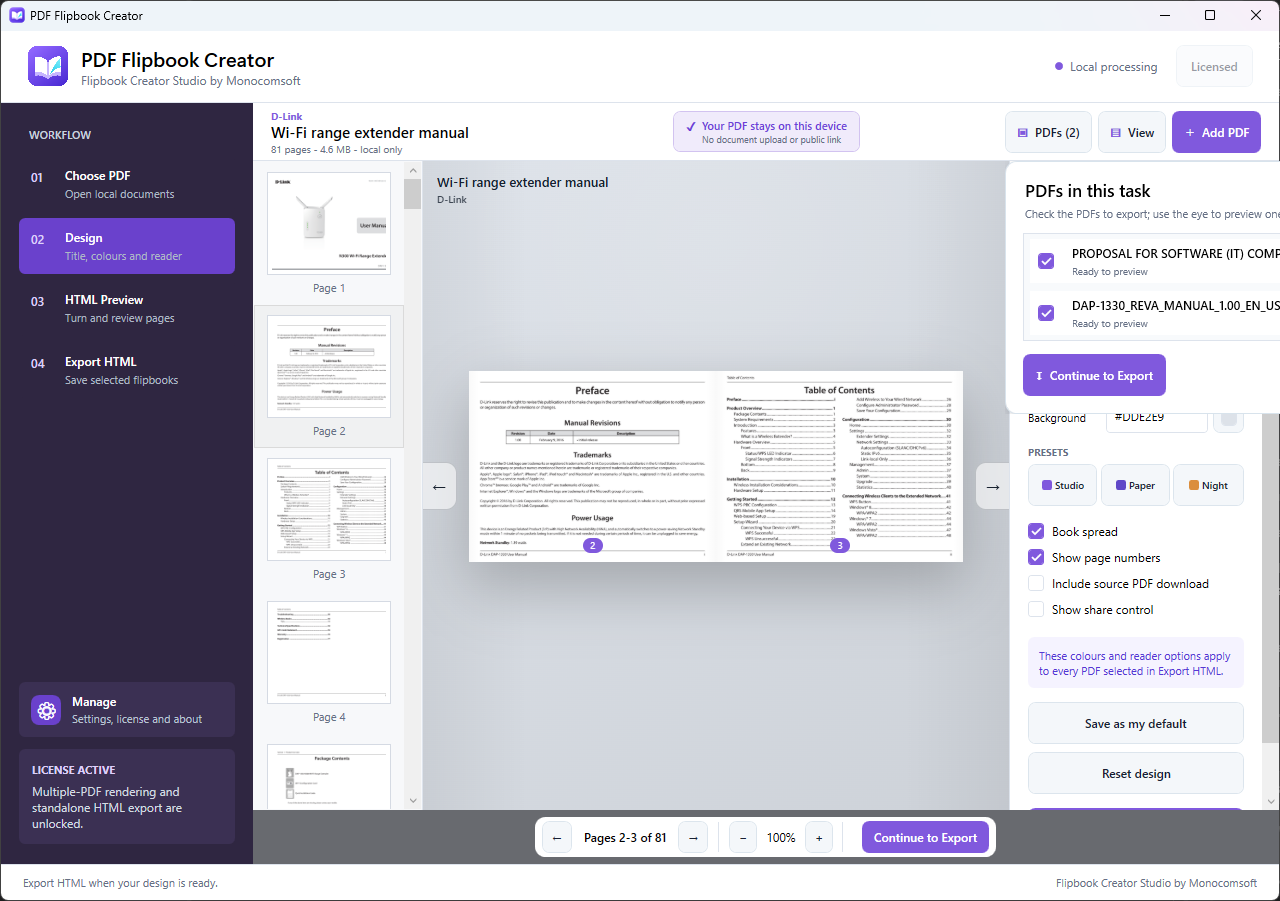
- Enter the publication title and brand line.
- Choose a colour preset or set your reader and background colours.
- Select single-page or book-spread reading and the available page-number options.
- Decide whether to include the original PDF download and share control.
- Save your preferred design defaults if you want to reuse them.
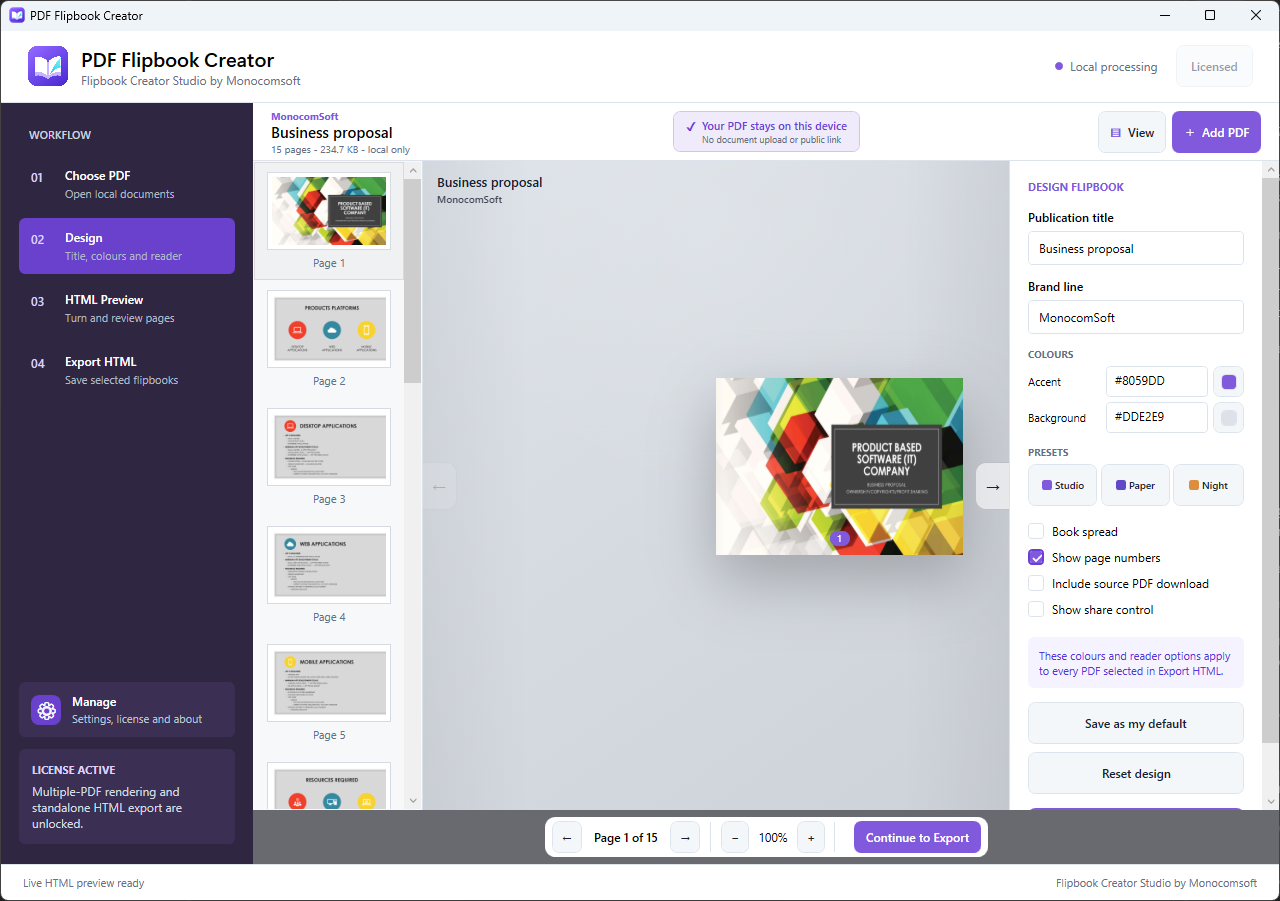
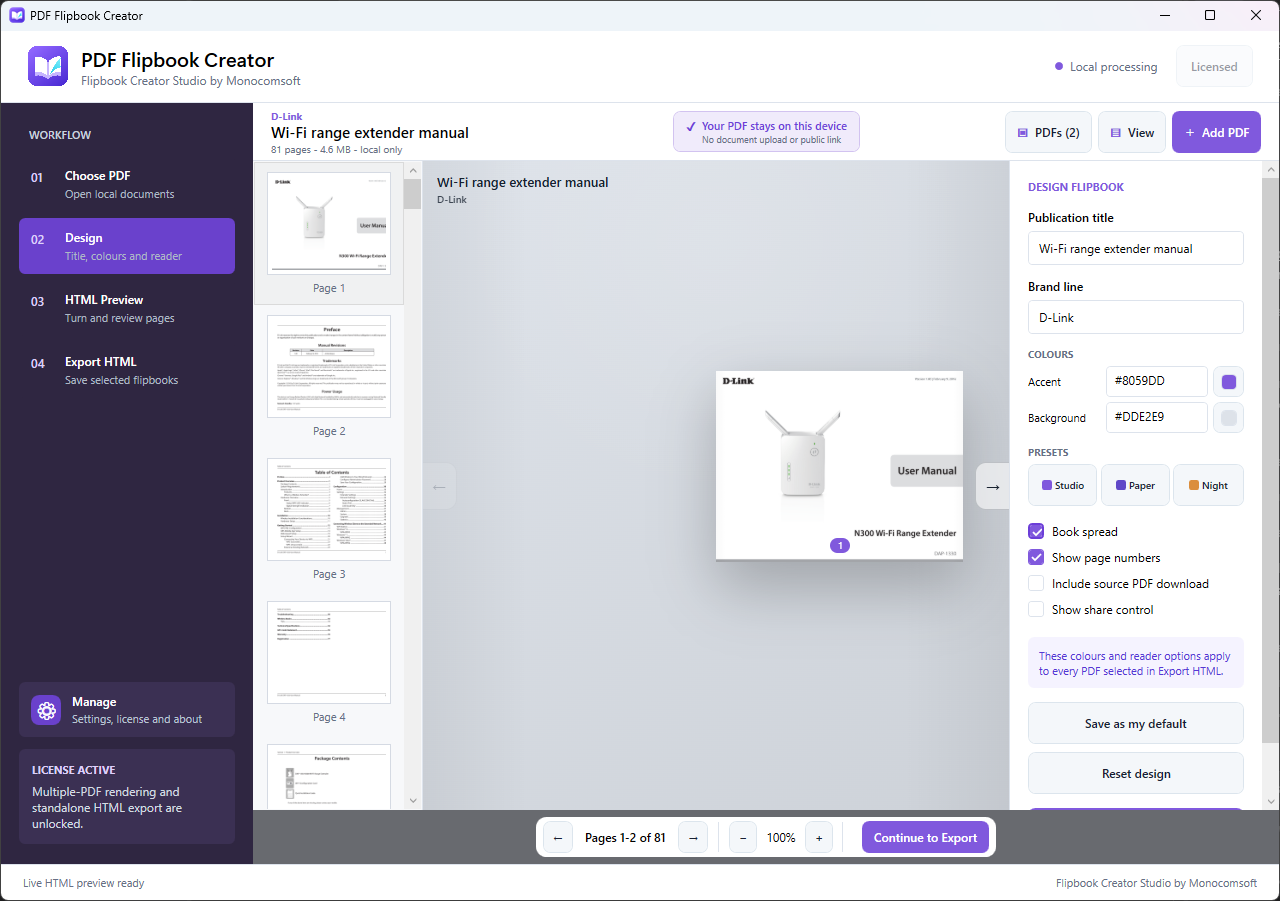
The reader design changes; your original PDF page layout is retained. Enable the PDF download only if you want readers to receive the source document.
Preview and navigate
Review the publication before exporting.
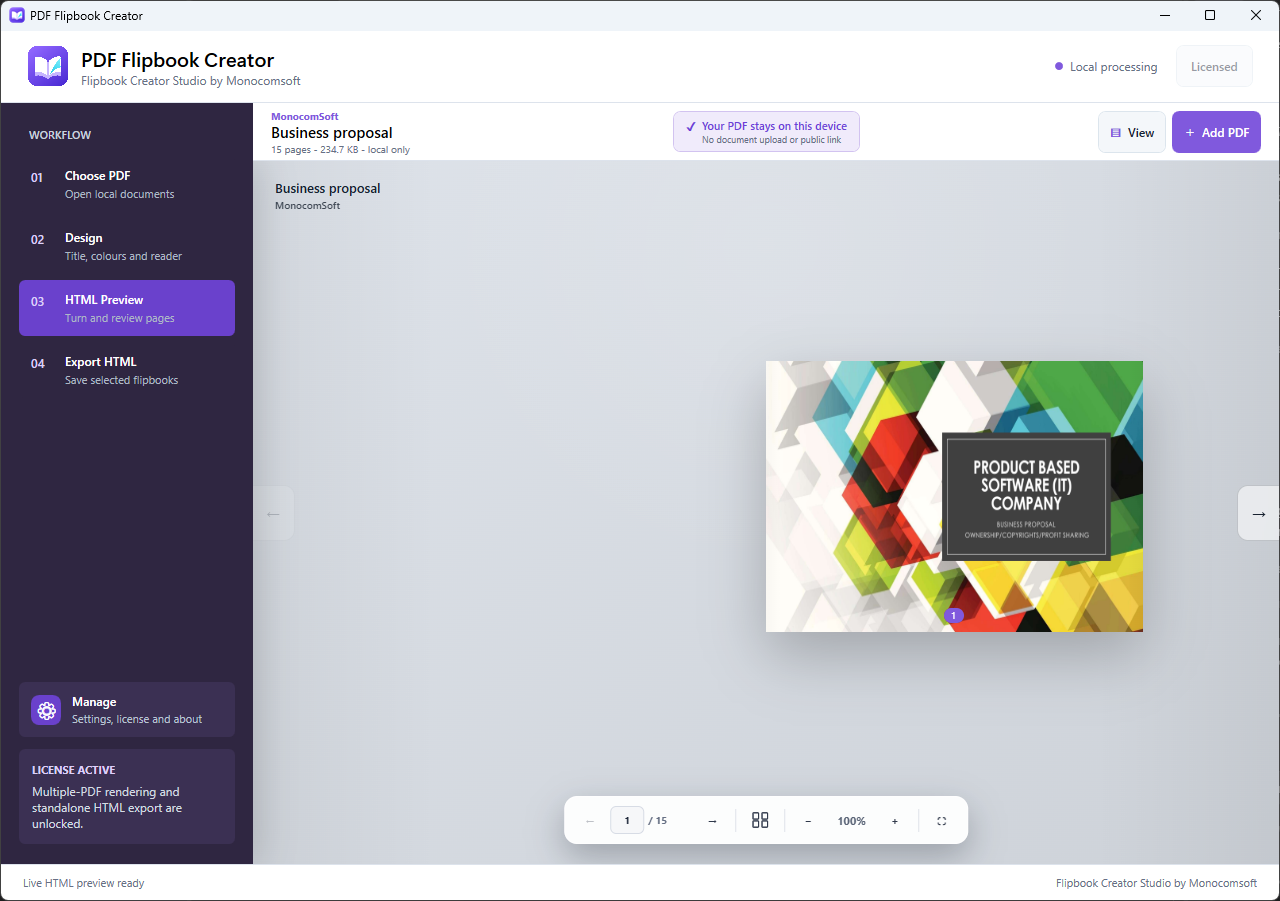
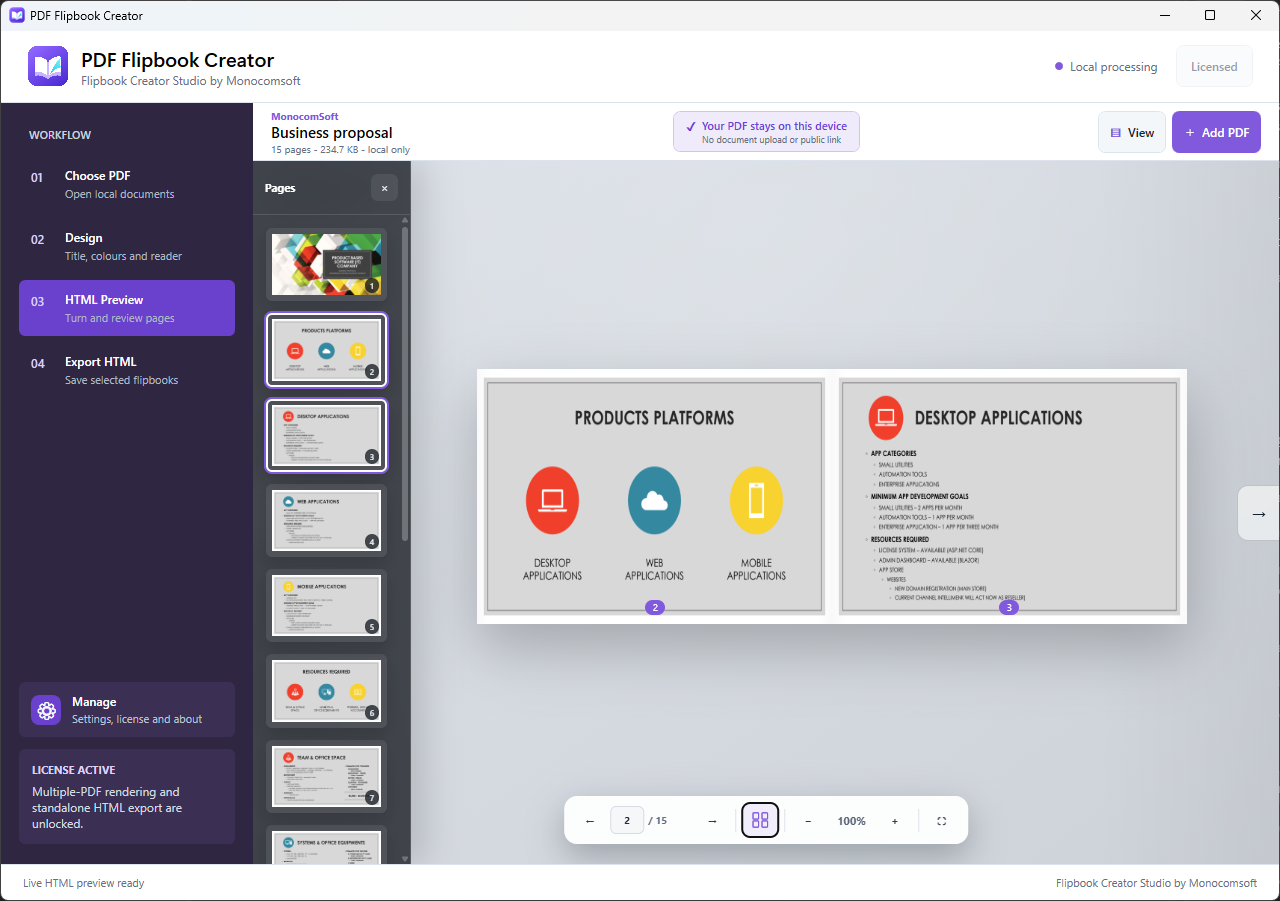
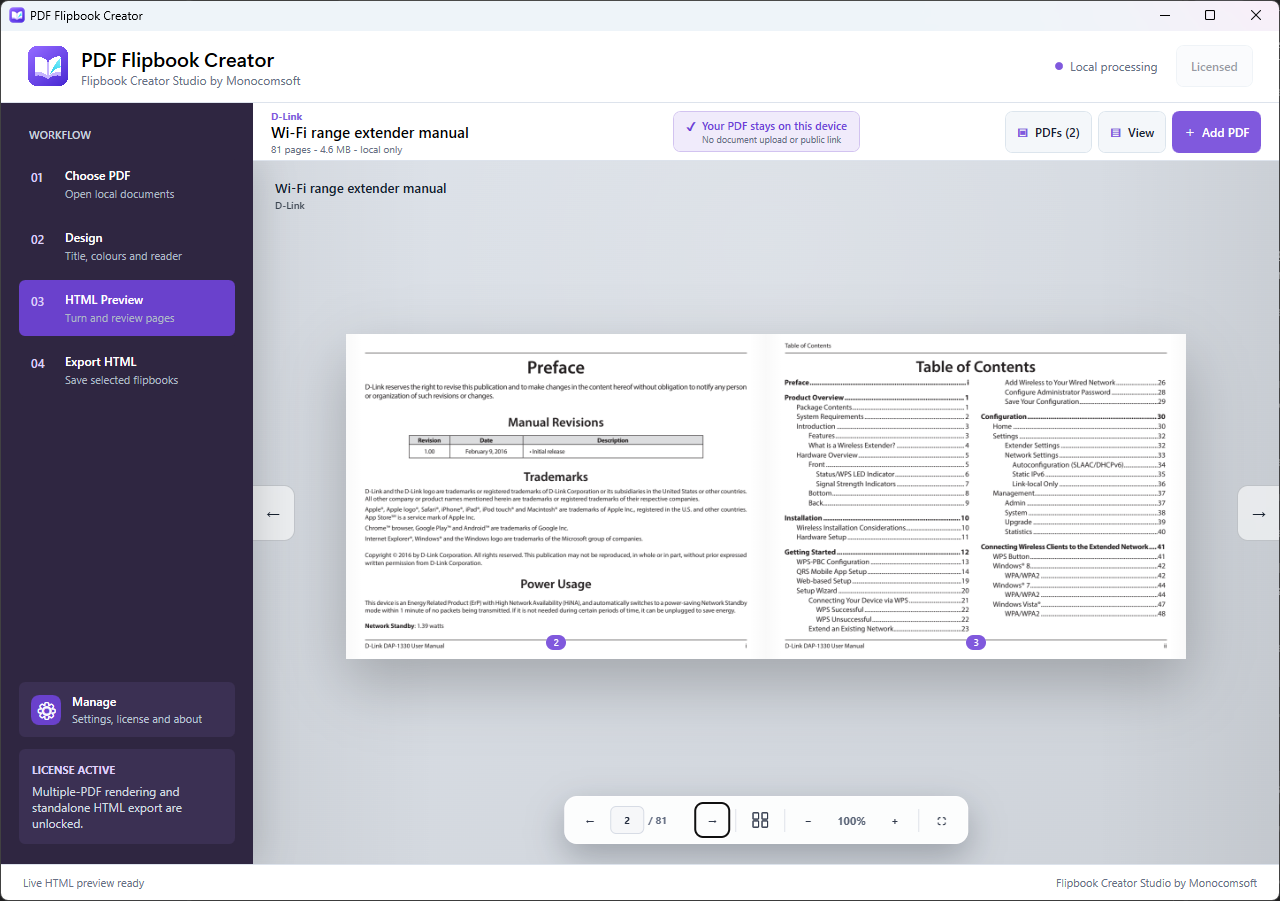
- Open HTML Preview to see the reader with your current settings.
- Turn pages and use thumbnails to jump to another page.
- Zoom into details and try full-screen reading.
- Check single-page and two-page spread options before sharing.
Activate your Flipbook license
Unlock additional PDFs and standalone HTML export.
- Open Manage > License > Activate, or select Activate at the top of the app.
- Enter your MonocomSoft purchase email and Flipbook license key.
- Select Send verification code and check the email inbox, including spam or promotions.
- Enter the six-digit code and select Verify and activate.
- Return to Export HTML after activation.
Purchase and activation require internet access. Use a Flipbook license; an EE360 license does not unlock this app. Keep license keys and verification codes private.
Manage several PDFs
Keep documents in one task list and choose the ones to export.
- With an active license, use Add PDF to add another document.
- Open the PDFs task list and use the eye button to preview a document.
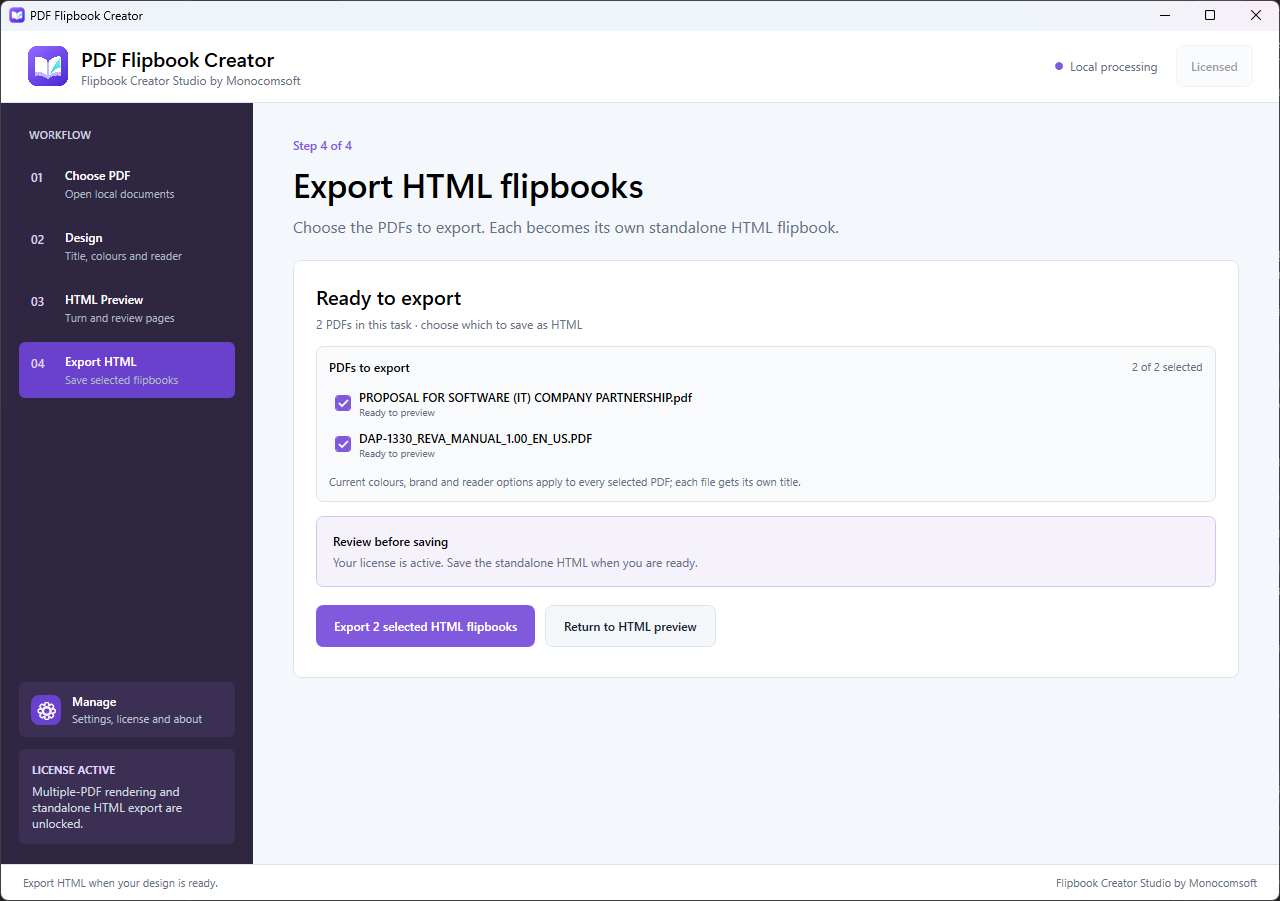
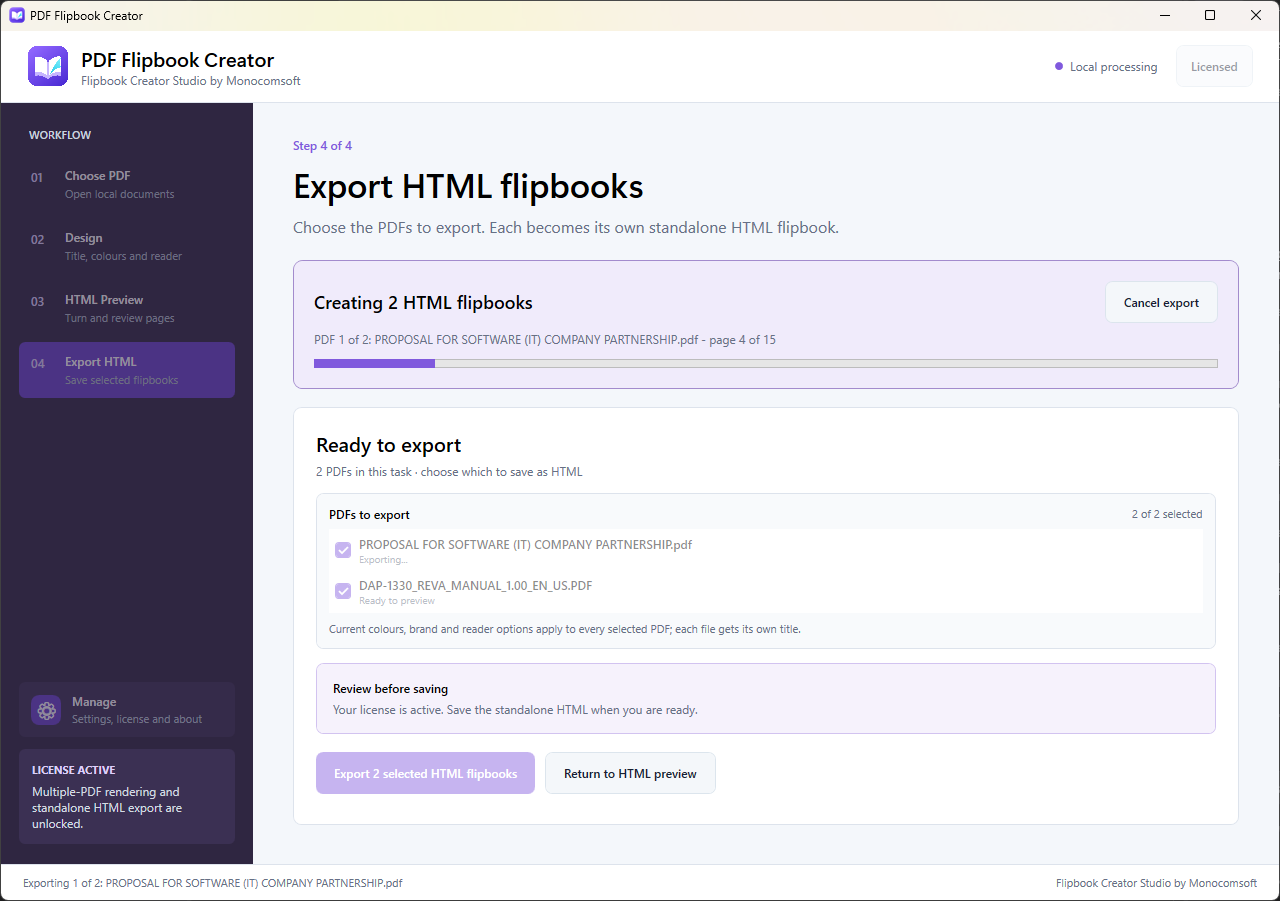
- In Export HTML, select the PDFs you want to save.
- Check the current reader settings before starting the export.
Export and share HTML flipbooks
Save the finished publication to your computer.
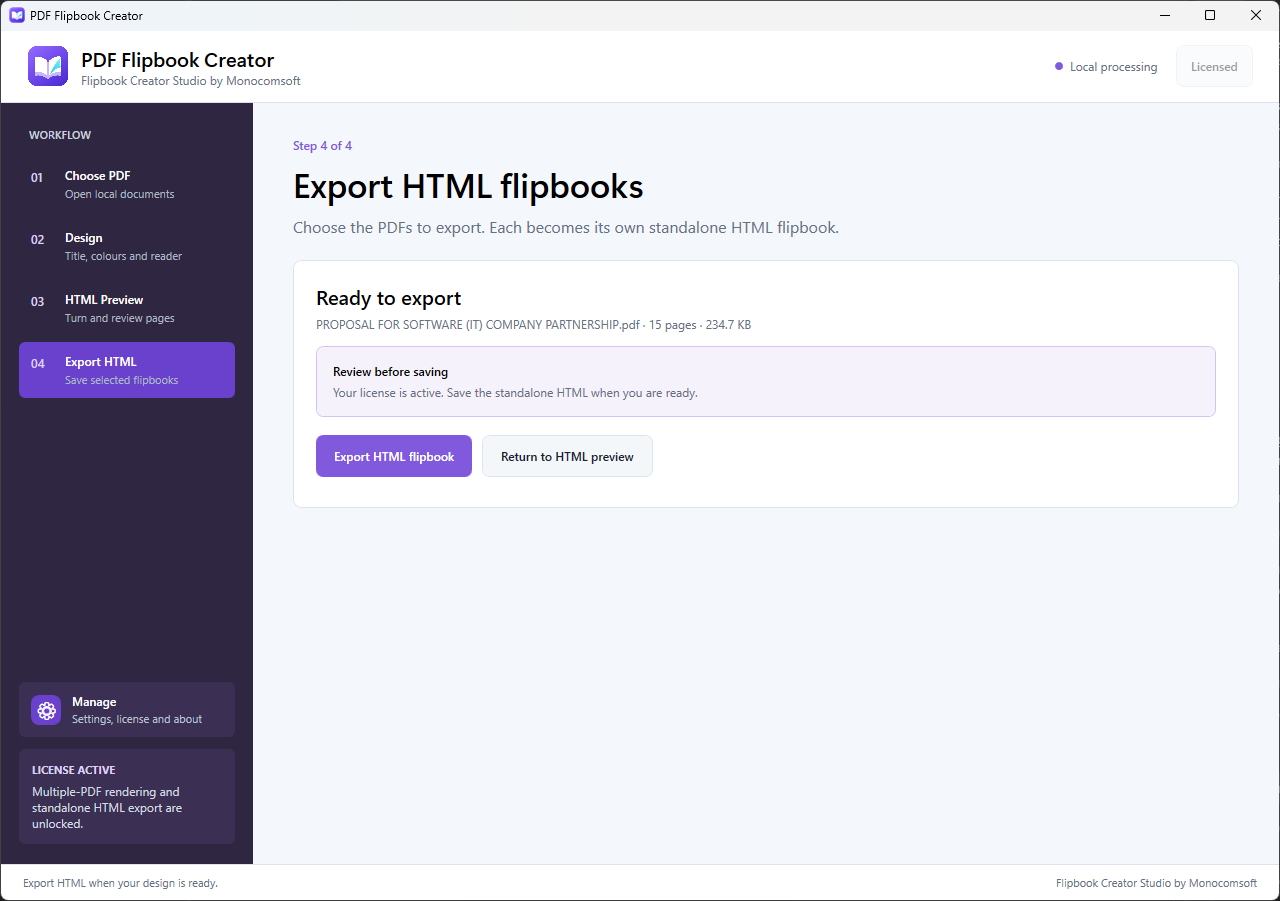
- Open Export HTML. If export is locked, complete license activation.
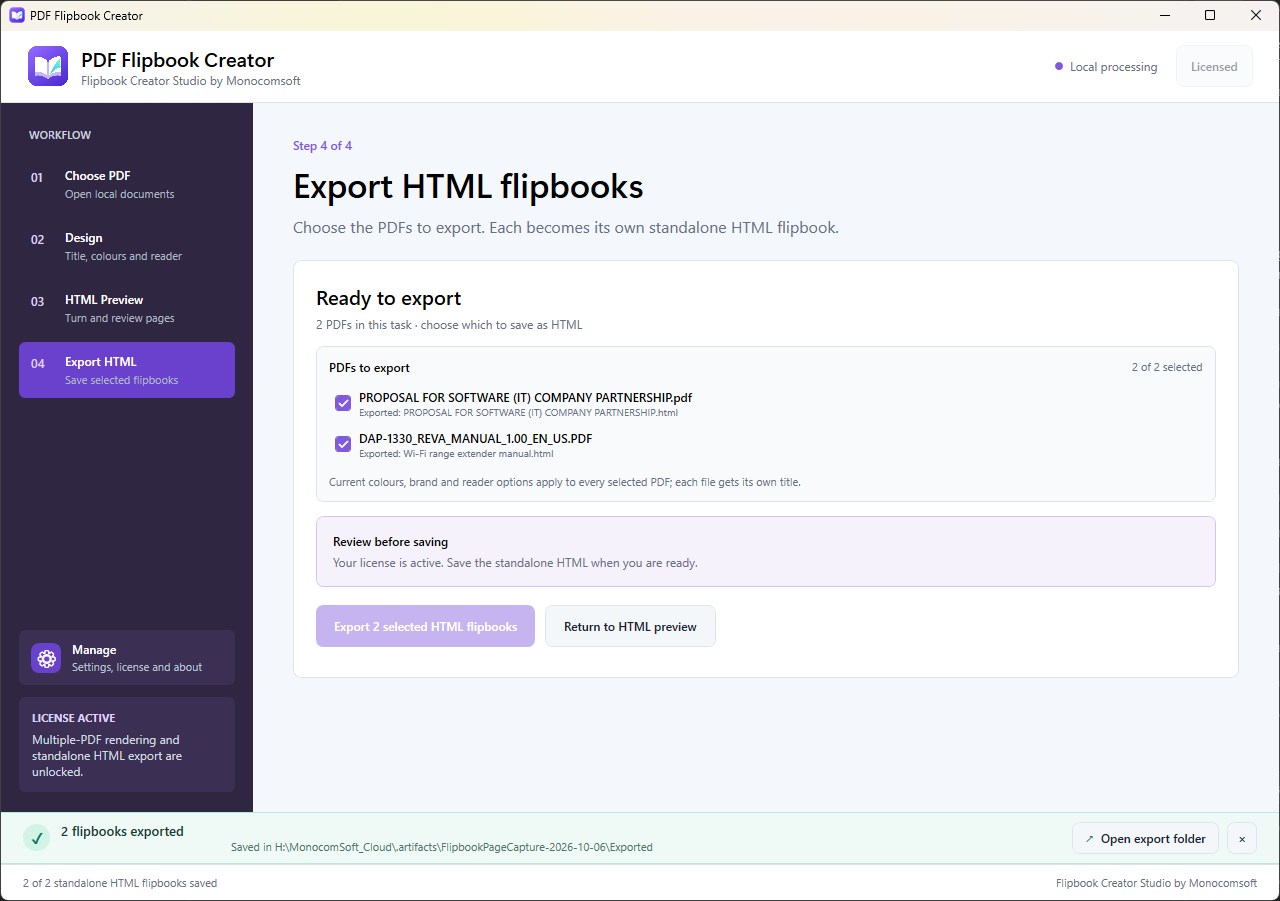
- For one PDF, choose the HTML filename and location. For several PDFs, choose an output folder.
- Start export and follow the progress until it finishes.
- Open the saved HTML file in a modern browser or open the export folder.
- Share the HTML file or upload it to your own website. Each selected PDF has its own flipbook file.
Document content is processed locally. Exported pages are images, so their text is not searchable or selectable. The app does not provide website hosting or automatic publishing.
Troubleshooting notes
Common questions that can save a support request.
Why can I preview but not export?
Free evaluation covers the full preview of the first PDF. Activate a paid Flipbook license to export HTML or process additional PDFs.
Why will my PDF not open?
Check that it is an unlocked PDF, no larger than 100 MiB and no longer than 500 pages. Remove password protection in a tool you are authorised to use, then try again.
Why is the HTML file large?
Every page is rendered as an image. Documents with many pages or detailed graphics can produce larger files and take longer to export.
Can I open EPUB or PowerPoint files?
This release accepts PDFs only. Export your ebook or presentation to PDF before adding it.
Where is my flipbook hosted?
Export saves a local HTML file. You choose how to share it or where to host it; the app does not upload it to MonocomSoft.