

Install and start your trial
Choose the Store route or use the supplied installer ZIP.
- Select Get it on Microsoft Store on the product page to download the Store installer.
- Alternatively, download PDF Manager 360 Installer.zip, extract it and run the included installer.
- Follow Windows installation prompts and launch PDF Manager 360 from Start.
- Open PDFs saved on your PC. The 14-day trial enables editing and output; no account is needed for local evaluation.
After expiry, reading remains available. Activate a paid PM360 license to edit, save, export, extract files or print. Upgrading does not restart the trial.
Read your PDFs and their comments
Keep your document and feedback close together.
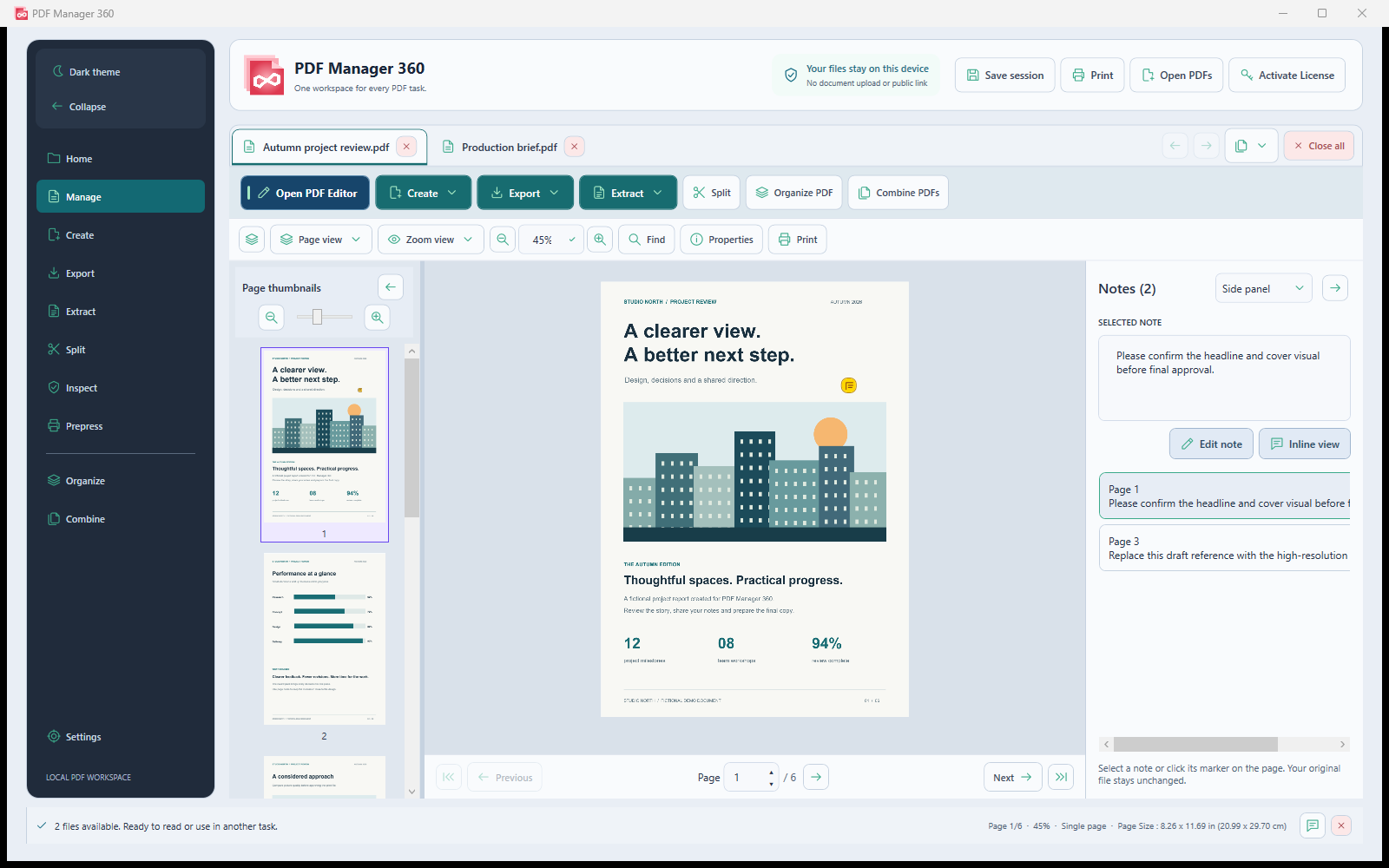
- Use Open PDFs to add one or several documents.
- Switch tabs or open the document list to choose the active PDF.
- Browse thumbnails, change zoom and use Find for readable text.
- Use F4 to open or close the thumbnail panel in Manage.
- Select a sticky-note marker or a note in the comments panel. Use Inline view for a view-only balloon beside the marker.
Add and edit review notes
Use the editor panel to make feedback clear.
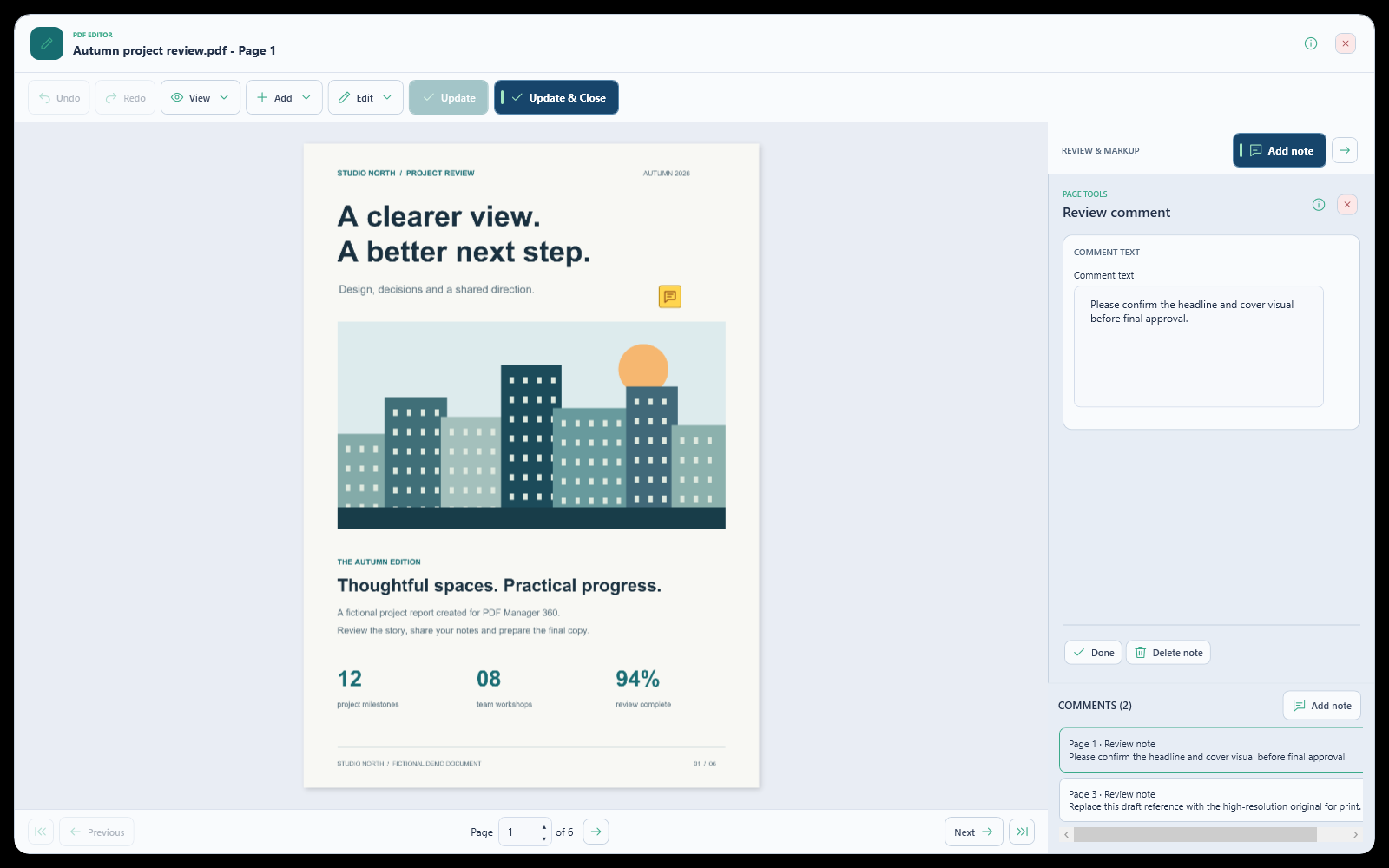
- From Manage, select Open PDF Editor.
- Select Add note at the top of the review panel, then place the note on the PDF.
- Enter the comment in the right panel. Drag its marker to reposition it.
- Choose a comment in the document list to open its page. Use Done to finish a note or Delete note to remove it.
- Choose Update & Close to apply the draft to your working PDF. Save a PDF copy from Manage to write the embedded notes to a file.
Added text and signature artwork do not edit the original text objects or create certificate-backed digital signatures.
Organize, combine and split pages
Build the order you want before saving.
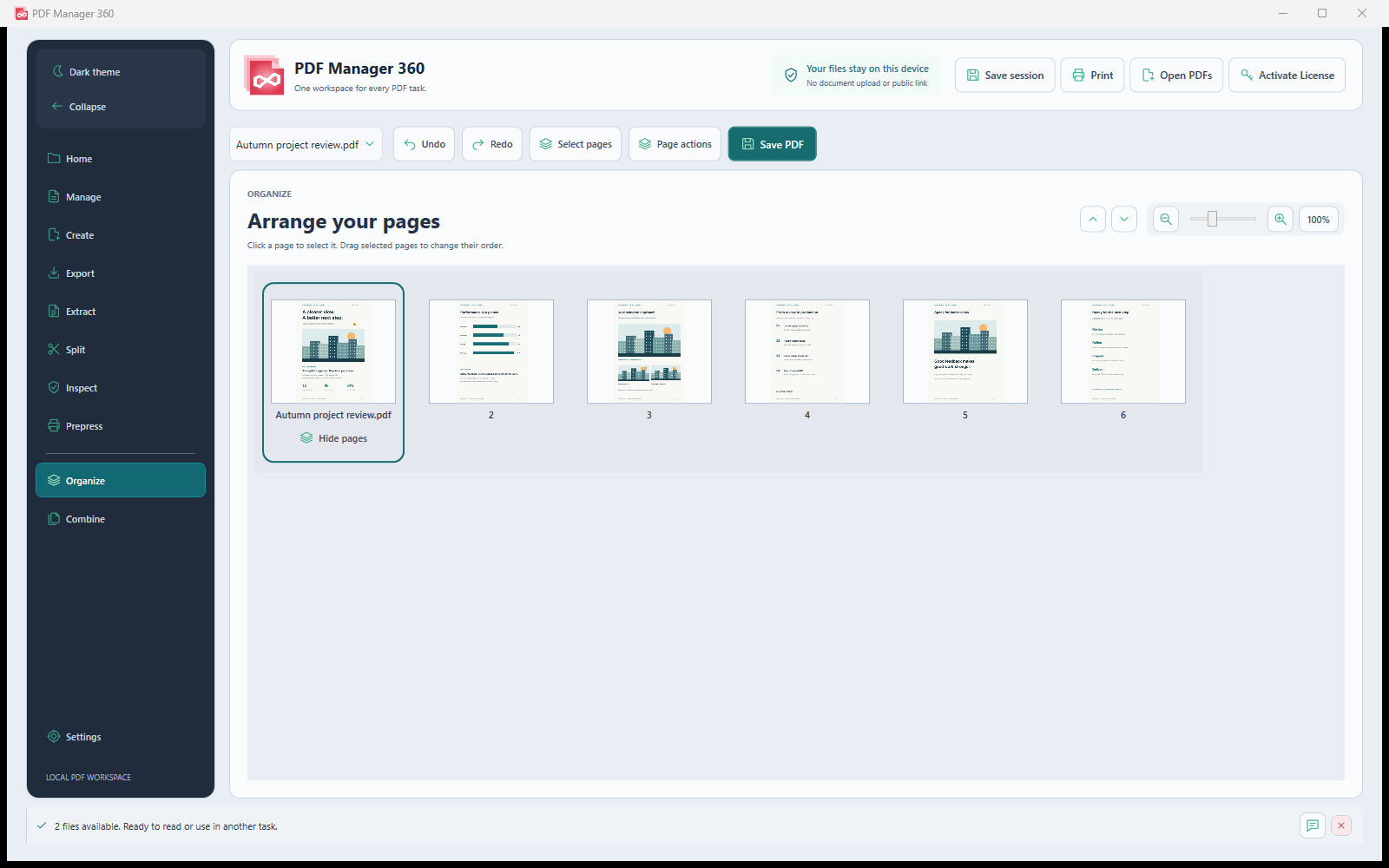
- Open Organize to reorder, rotate, duplicate or remove pages from the active PDF.
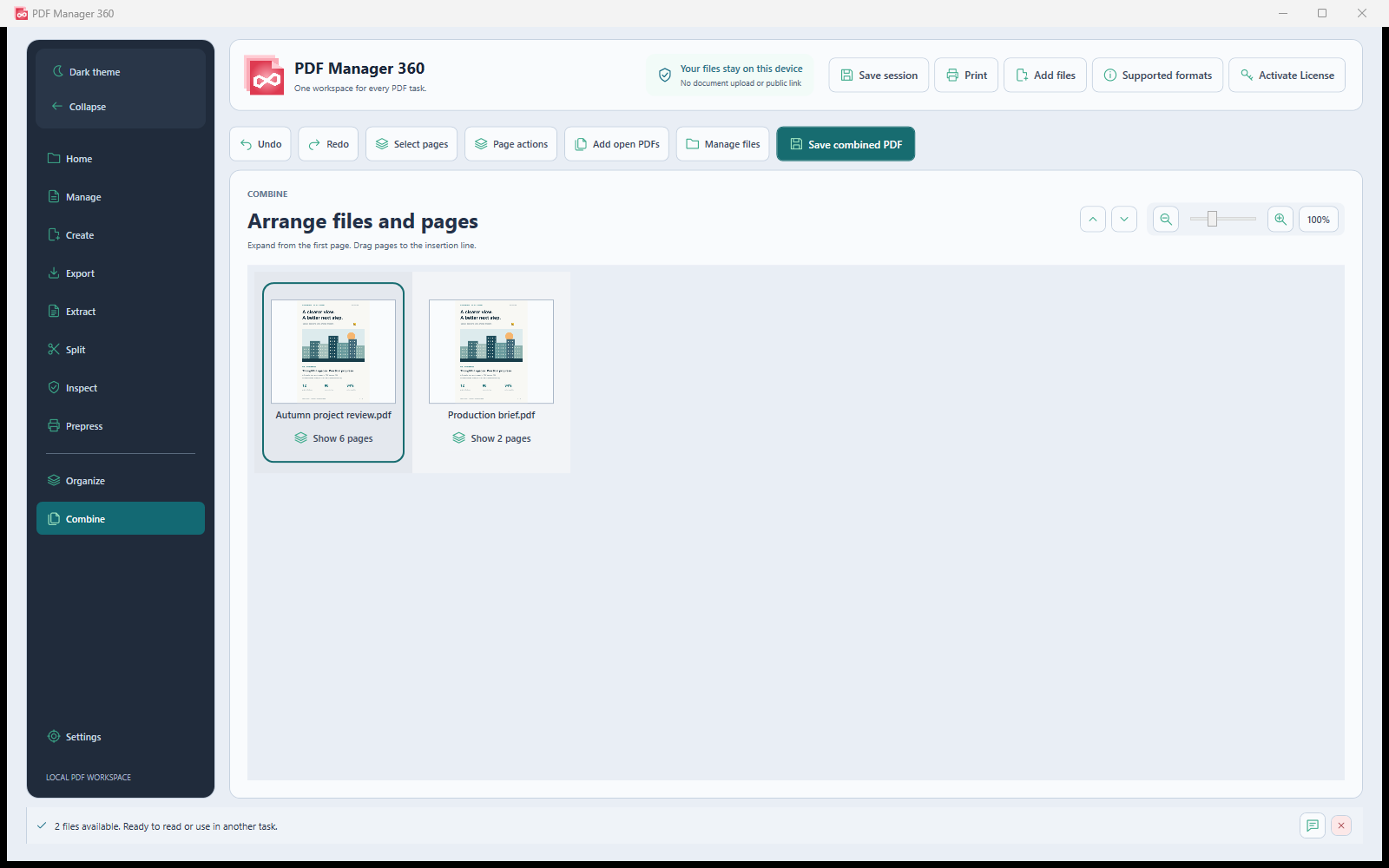
- Open Combine and use Add open PDFs to include PDFs from your reading workspace.
- Expand a document group to review its pages. Use Manage files to review the source-file order.
- Open Split and choose every page, page groups, batches, odd pages or even pages.
- Review the output plan and save a new file.
Create, extract and save output
Select a format that suits your next task.
- Create PDFs from images or text, or use the installed converter required by another supported format.
- Use Extract for readable text or original embedded pictures.
- Use Export to choose PDF, page images, TXT, RTF or DOCX.
- In Save, review page scope, quality or resolution and the destination.
- Keep the complete set when saving numbered page images or separate page-group PDFs.
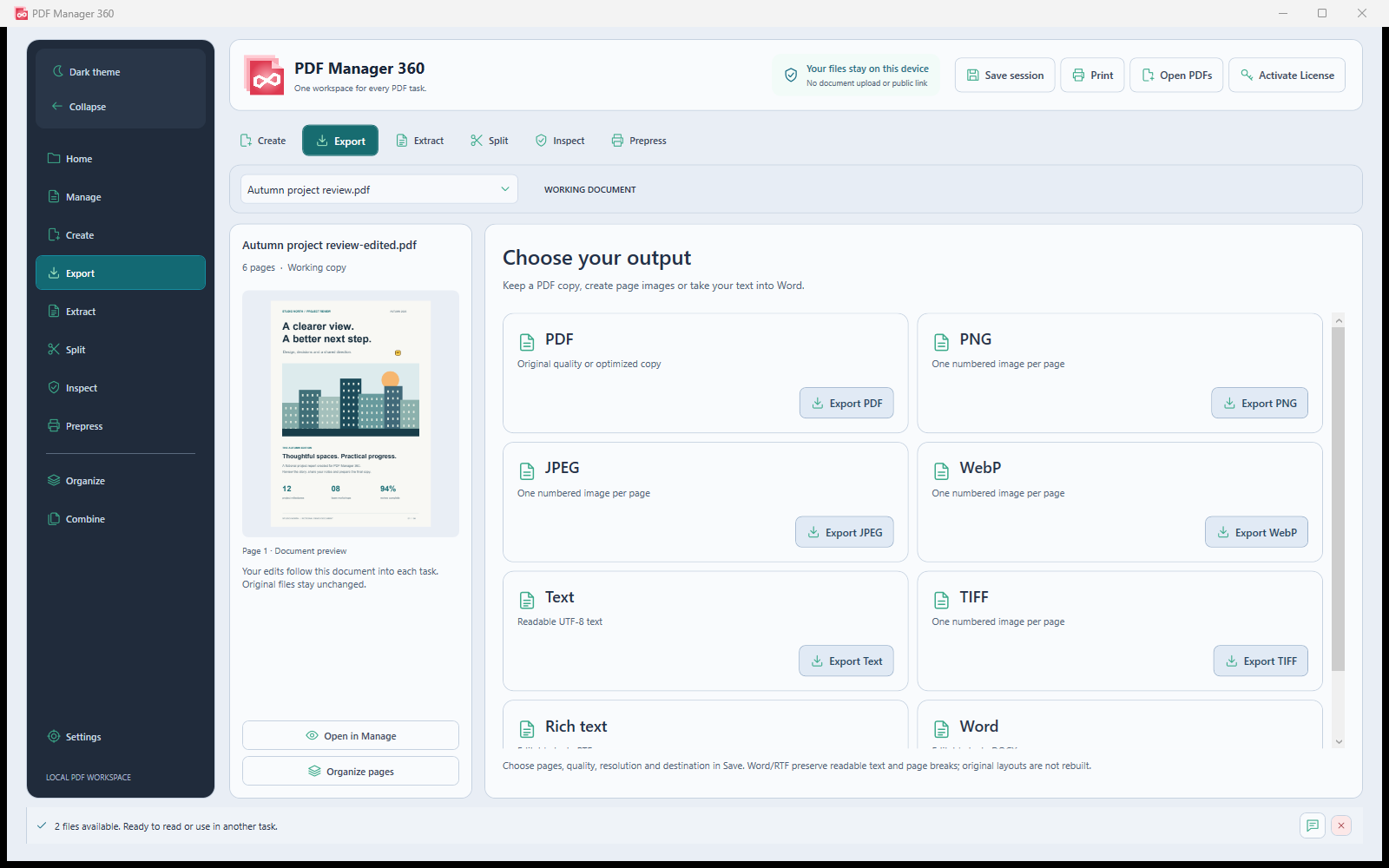
RTF and DOCX preserve readable text and page breaks, not the original page design. Scans need OCR, which is planned for V2 and is not included in the current release.
Find images below your print DPI target
Use placement resolution to identify files worth reviewing.
- Open Inspect for the active working document and choose Inspect document.
- Use Page summary for page dimensions, rotation, text counts, image counts, notes and source references.
- Choose Images to see pixel dimensions, placement size and effective DPI on both axes.
- Set the target agreed for your print job and use Below target to filter the inventory.
- Select a row and choose Open image page to review the page, or save a CSV report.
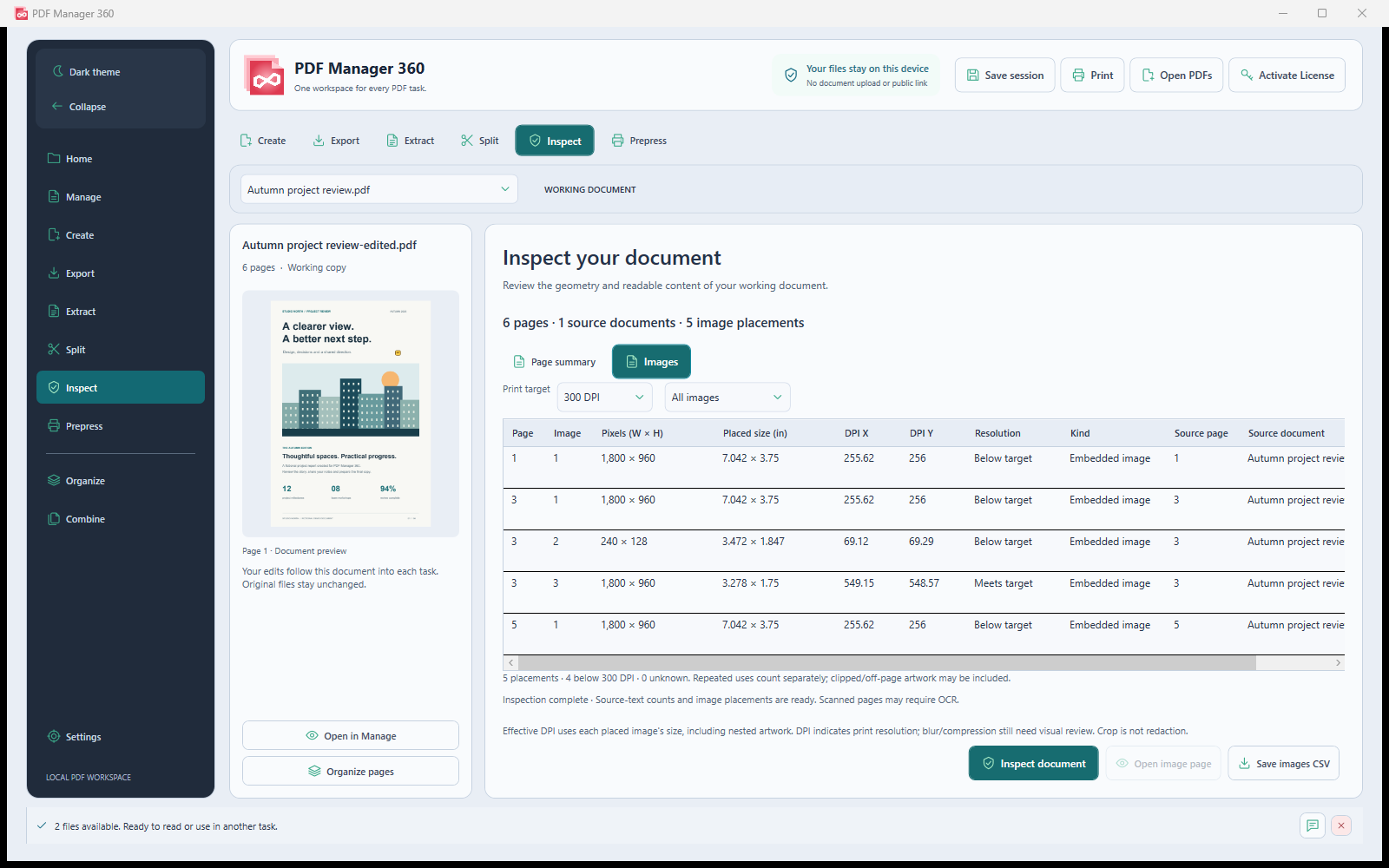
Effective DPI depends on placement size. Clipped or repeated placements may appear separately; vector art is not a raster image. Blur and compression still need visual review.
Set up optional Ghostscript
Core PDF tools work without it; advanced conversion and ink sampling use it.
- Download a current Ghostscript Windows 64-bit installer from the official Ghostscript website and install it.
- Reopen Prepress. PM360 checks standard Ghostscript installation locations and PATH.
- If the Ghostscript executable field is empty, choose the installed bin/gswin64c.exe file.
- Select the output standard and a suitable ICC profile. Print presets require a CMYK profile; archival presets require an RGB profile.
- For a printer-specific job, use the ICC profile approved or supplied by the printer.
Ghostscript and optional Office, AutoCAD and ImageMagick applications are not bundled with PM360. Install complete supported tools rather than copying a single executable. See https://ghostscript.com/releases/gsdnld.html for official downloads.
Preview and save a prepared PDF
Review the actual prepared output, including crop marks.
- Open Prepress and choose an output standard. Use Print layout only when no Ghostscript conversion is needed.
- Keep current trim size or select the trim dimensions. Enter only bleed that already exists in the artwork.
- Enable crop marks if required. Leave text outlines off for searchable archival copies.
- Choose Preview PDF to prepare the full output and browse every page.
- With Ghostscript configured, use the output-preview panel for rendered CMYK process-ink samples.
- Choose Save PDF beside Done to save the exact prepared bytes shown, or return to Prepress with Done.
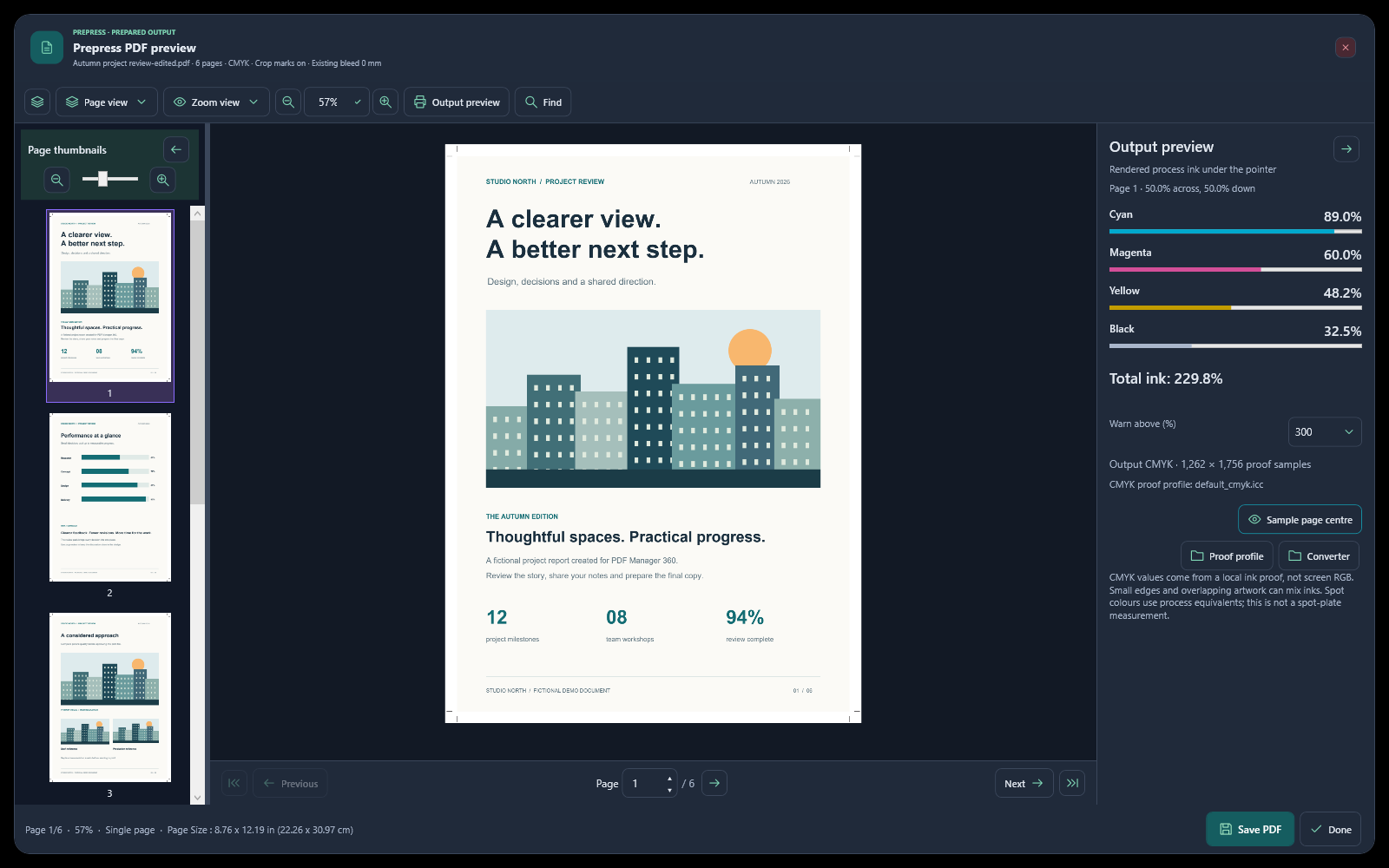
No bleed is invented. Crop is not secure redaction. Confirm the final file with your printer and validate PDF/A or PDF/X output independently where required.
Activate a PM360 license
Use the purchase email and license issued for PDF Manager 360.
- Choose Activate License in PM360.
- Enter your purchase email and PM360 license key.
- Request the email verification code and check your inbox and spam folder.
- Enter the received code and complete activation.
- Return to the document task after activation.
Purchase and activation need internet access. One-year, three-year and lifetime licenses cover one computer. Keep verification codes and license keys private.
Troubleshooting notes
Common questions that can save a support request.
Why can I read a PDF but not save it?
Your trial may have expired. Reading stays available after 14 days, while editing and output require an activated paid PM360 license.
Why does Prepress ask for a converter?
CMYK, PDF/X, PDF/A, text outlines and ink sampling require Ghostscript. Use Print layout only with outlines unchecked for geometry preparation without that converter.
Why does a larger PDF not open?
Default per-file limits are 500 pages and 100 MiB. You may raise them in Settings up to 2,000 pages and 1,000 MiB for your Windows user. Complex documents can still require substantial memory and time.