EML Export (Bulk) PST + Profiles Folder/Date Filters Offline Processing

Convert Outlook Emails to EML from PST Files & Outlook Profiles

Need Outlool Mails as EML (Electronic Mail) portable files for migration, archiving, eDiscovery, or email backups? This guide shows how to export Outlook emails to .EML using MS Outlook Email Extractor β€” with folder selection, date filters, and safe offline processing.
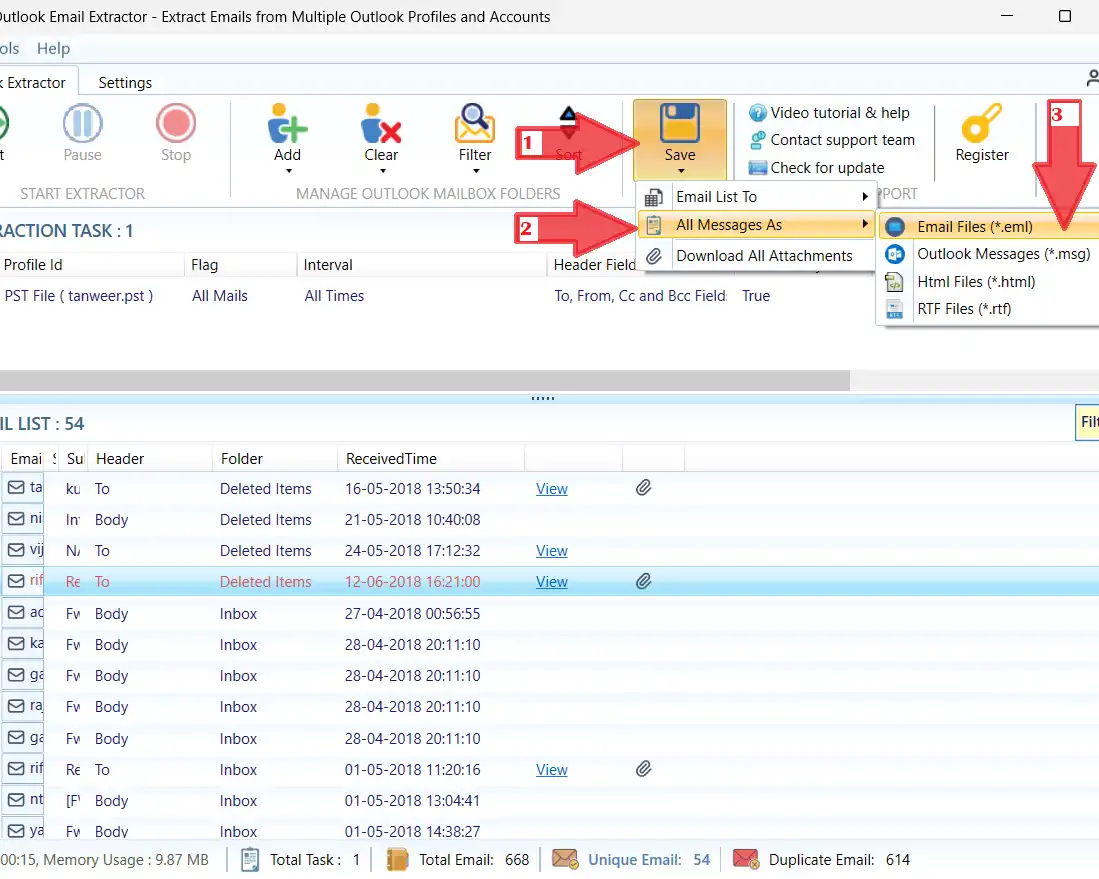
Trial shows full preview of extracted results. Saving/exporting requires activation.
Where EML export lives in the app
Menu: Save β†’ Email To β†’ EML
Convert Outlook email to EML export menu
Pro tip: Export by date range for large PST files to speed up processing.

Why Convert Outlook Emails to EML?

EML is a widely used email file format that helps you move and archive emails beyond Outlook. When you export Outlook emails to EML, you get portable message files that are easy to store, share, search, and import into many email clients and systems.

Migration Ready
Move emails between platforms with EML portability.
Archiving
Create long-term message backups outside Outlook.
Search & Review
Store EML files by year/folder for quick retrieval.
Offline Control
Process PST data locally on your Windows machine.
What EML typically preserves
  • Headers: From, To, CC, Date, Subject, Message-ID
  • Email body (HTML/text)
  • Inline images (depending on message content)
  • Attachments as part of the message structure
Tip: If your priority is only attachments (not full messages), use Extract Attachments from Outlook

Common Use-Cases for EML Export

Bulk EML export is used by IT, legal, compliance, and operations teams to archive and move Outlook emails efficiently.

Mailbox Backup
Create an offline archive of emails for safety and retention.
Legal & eDiscovery
Export messages with headers for review and evidence handling.
Migration Projects
Move data from Outlook PST archives to new systems.
Operations & Records
Archive correspondence by client/project/year for traceability.
Recommended export structure
  1. Select folders (Inbox/Sent/Custom)
  2. Apply date range (monthly/quarterly)
  3. Export to EML
  4. Store in organized folders (year/client/project)
  5. Optional: Export email list to Excel for tracking
Need a sender list too?

Export sender/subject/folder metadata to Excel for reporting.

Export to Excel β†’

Step-by-Step: Convert Outlook Emails to EML

Follow these steps to export Outlook emails to EML from PST files or Outlook profiles. Use filters to reduce processing time and keep output organized.

Step 1: Load PST File or Outlook Profile
Open the tool and add a task using Add. Choose either:
  • PST: select the PST file to load folders.
  • Profile: select a live Outlook profile (Outlook desktop required).
Step 2: Select Folders
Choose folders like Inbox, Sent Items, or project/client folders. Selecting only required folders improves speed.
Step 3: Apply Filters (Optional but recommended)
Use filters such as date range, domain/user, keyword contains, and read/unread to export only relevant messages. Enable duplicate removal for cleaner exports if needed.
Step 4: Start Extraction & Preview Results
Click Start to extract. You can preview the extracted list in trial mode.
Step 5: Export Emails to EML
Go to Save β†’ Email To β†’ EML. Choose an output folder and export.
Best practice: Save to a structured path like D:\Outlook-EML\2026\Q1\.
Trial note: Trial supports full preview. Saving/exporting requires activation with a license key.
Pro tips for cleaner EML exports
  • Export by date range for large PST files (faster + organized).
  • Select folders carefully to avoid noise (Deleted/Junk unless needed).
  • Use keyword filters for client/project exports.
  • Remove duplicates when the same email appears in multiple folders.
Need attachments only?

If your goal is documents (PDF/DOCX/XLSX), use dedicated attachment export.

Extract Attachments β†’

EML vs MSG: Which Format Should You Choose?

Both formats store email messages, but they are used for different workflows. Choose the format based on where you plan to open or import your exported emails.

Choose EML when…
You need portability across email clients, easy archiving, and broad system compatibility.
Choose MSG when…
You prefer Outlook-native behavior for internal workflows and Outlook-based tooling.
Best practice
If you're unsure, export to EML for portability. You can also export a quick Excel list for tracking: Export Outlook Emails to Excel.
Output organization ideas

Create a clean folder tree for long-term retrieval:

D:\Outlook-EML\ClientA\2026\Jan\
D:\Outlook-EML\Legal\Case-123\
D:\Outlook-EML\HR\Resumes\2025\
Deduplicate before export

Duplicate removal helps prevent repeated EML files across folders and threads.

Remove Duplicates β†’

Bulk Download Outlook Attachments Faster

Use MS Outlook Email Extractor to extract attachments from PST files and Outlook profiles β€” offline, fast, and with smart filters for clean output folders.


Trial supports full preview. Activation is required to save/export.

FAQ – Convert Outlook Email to EML

Quick answers to common EML export questions.

Load PST or Outlook profile, select folders and filters, then go to Save β†’ Email To β†’ EML to export messages. Trial supports full preview; saving requires activation.

Yes. EML is designed to preserve key headers (From/To/Date/Subject/Message-ID) along with message content.

Yes. Select only the required folders and apply date filters to export EML files for a specific period.

Use EML for portability across many email clients and archiving workflows. Use MSG for Outlook-native workflows. If unsure, start with EML.
Back to product: Outlook Email Extractor
